
Online Resume Builder
Create a resume or CV online with customizable templates.Add your details and download your resume as a PDF.
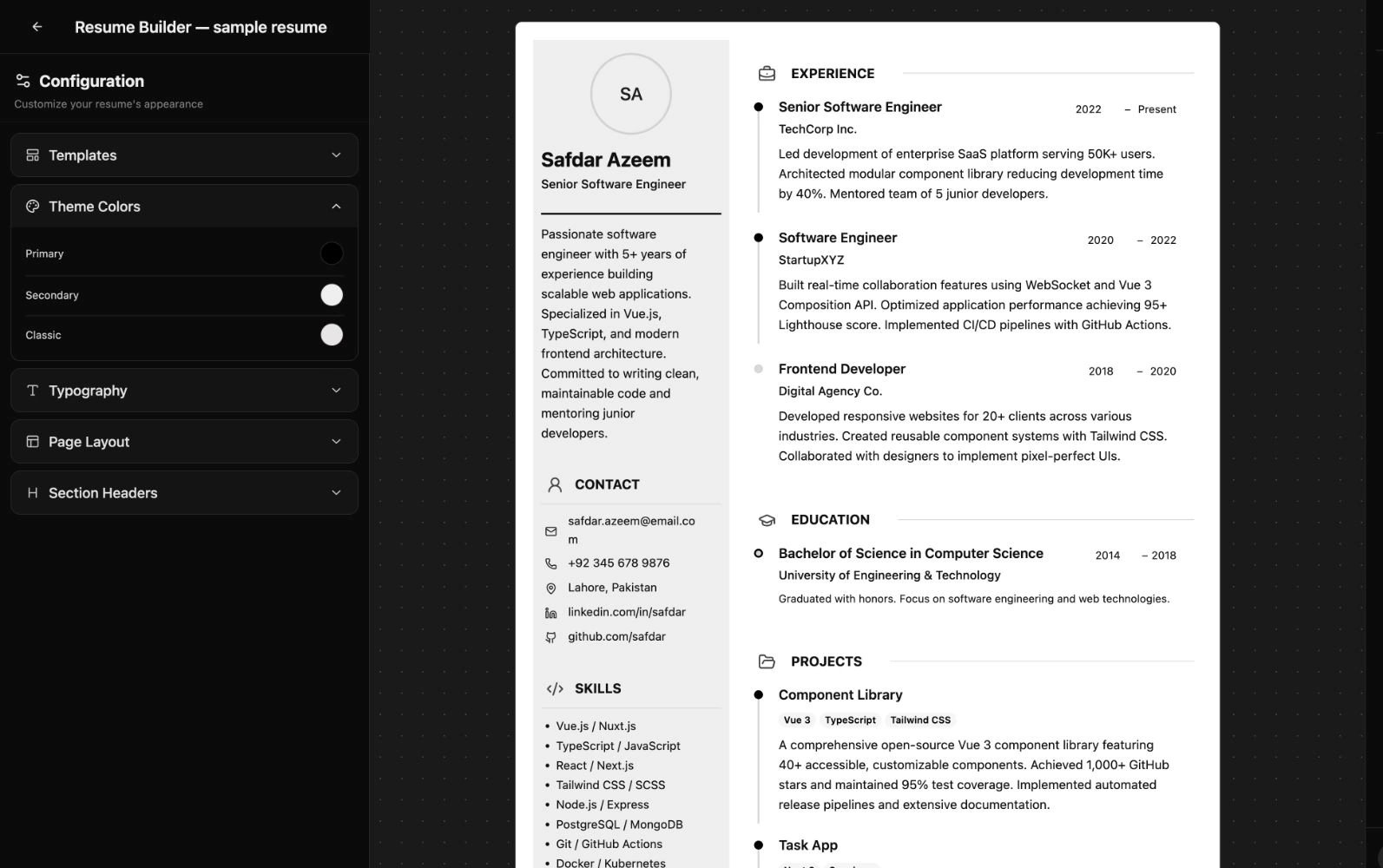
Build a resume online
How to create a resume
in three steps
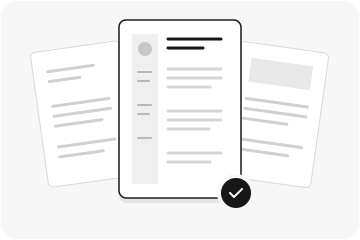 Step 01
Choose a resume template
Select a template, then choose the colors and text size for your resume.
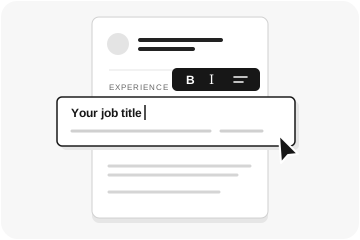 Step 02
Add your resume details
Edit your contact details, work experience, education, and skills directly on the page.
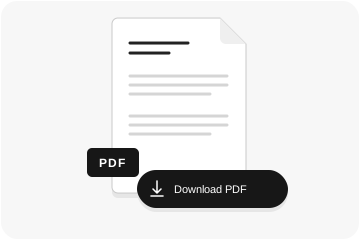 Step 03
Download your resume
Review your resume, then download a PDF for job applications or print a copy.
01 / Resume templates
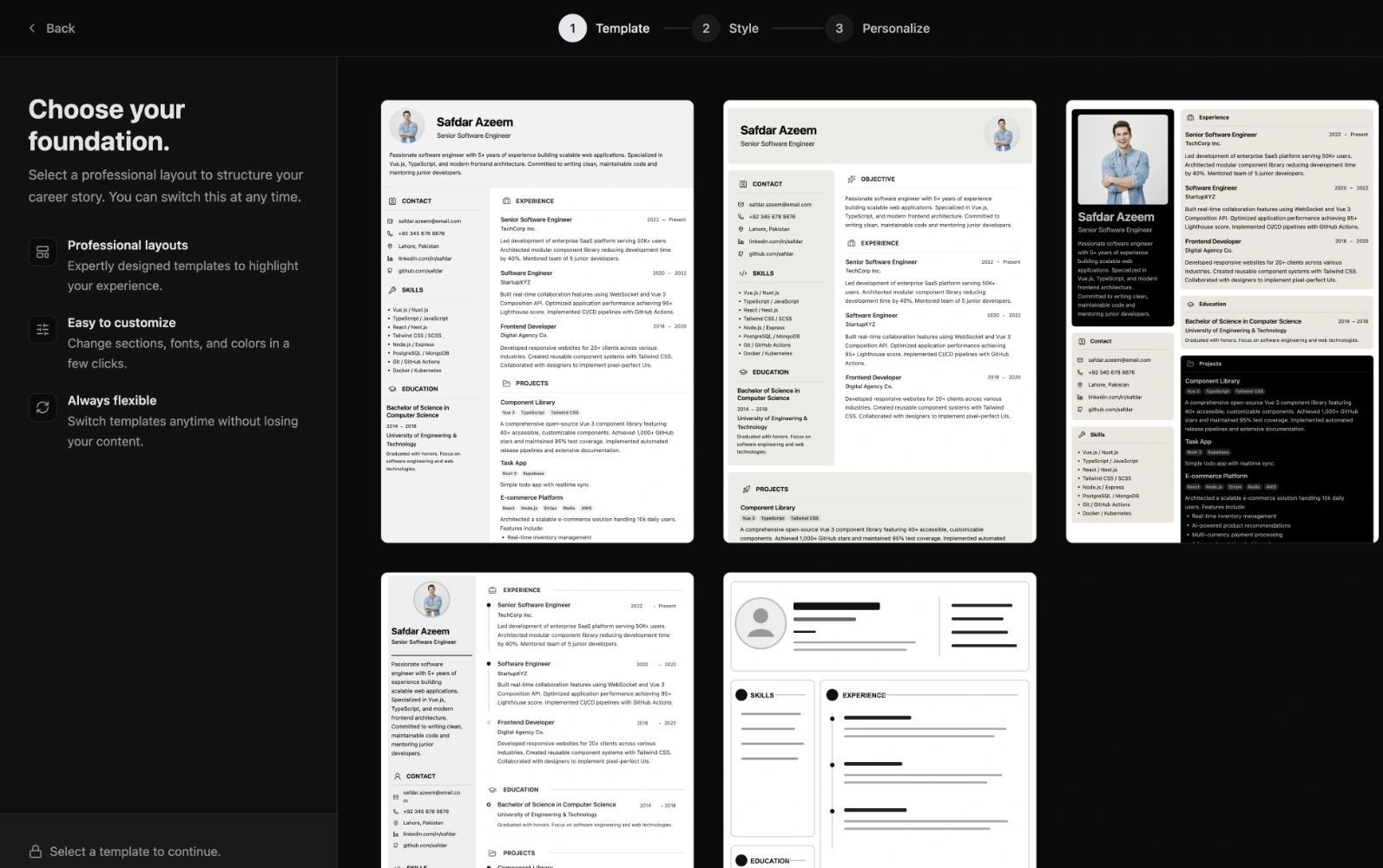
Choose a resume template.
Customize the layout.
Choose from five resume templates: Momentum, Zenith, Bento, Premium Sidebar, and Executive Grid. Compare layouts for your profile, work experience, education, and skills.
Set colors and text size when you create your resume. You can change templates later without retyping your content. Switching templates applies the new template’s default styles and section arrangement.
02 / Resume editor
Edit your resume
directly on the page.
Click text in the resume editor to replace the sample content with your own details. Format descriptions and add, remove, or reorder entries. Available sections and display options depend on the resume template.
- Contact details and summary
- Add your name, job title, professional summary, contact details, and relevant links. Include a profile photo if needed.
- Work experience
- List job titles, employers, employment dates, and achievements. Add or reorder entries to highlight experience relevant to the job.
- Education
- Add degrees, qualifications, schools or universities, and study dates. Include relevant academic details.
- Skills
- List skills relevant to the job you are applying for. Edit the skills content using the options available in your template.
- Projects
- Add academic, personal, or client projects with descriptions and technology tags to show relevant practical experience.
- Resume objective and headings
- Add a resume objective in templates that support it. Rename section headings to match your content.
03 / Resume formatting
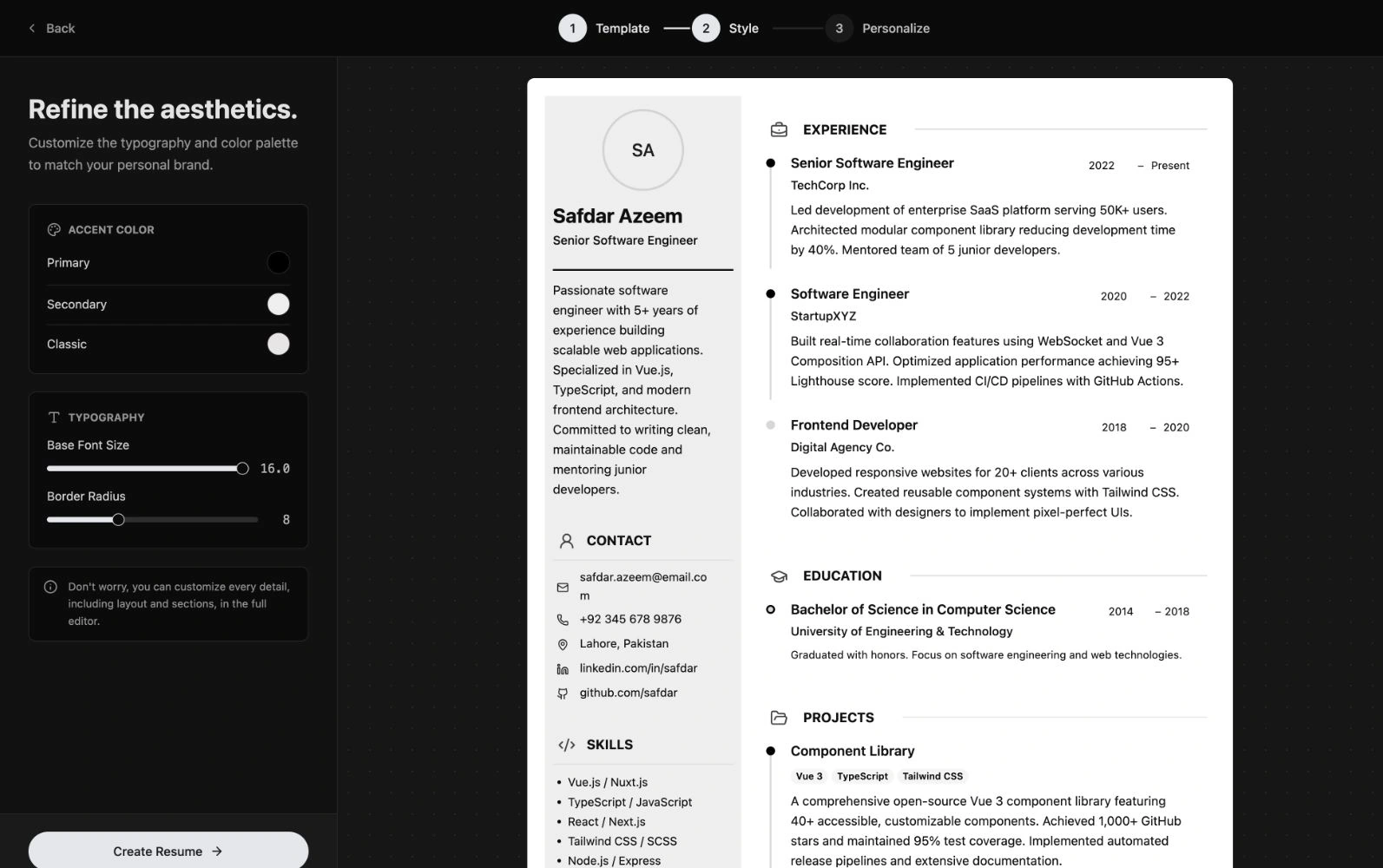
Customize resume colors,
text size, and margins.
Use the live resume preview to review formatting as you edit. Zoom in to check details and scroll through longer resumes before exporting.
- Colors and text size. Change theme colors, adjust the base text size, and set rounded corners.
- Page layout. Adjust top, right, bottom, and left margins in the editor.
- Section headings. Change heading style, alignment, capitalization, and size.
Autosave, undo, and redo
Undo or redo changes while editing. Autosave saves your resume to your account, and the save status shows whether changes have been saved. Open Recent Resumes to continue editing a saved resume.
04 / Download and share
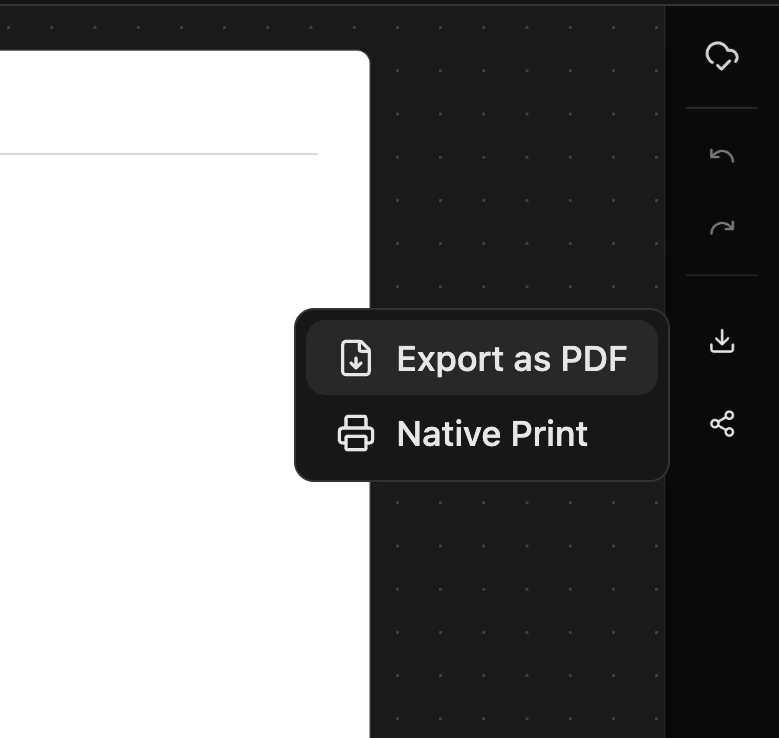
Download your resume
as a PDF.
Download a PDF resume for job applications using Export as PDF. To print your resume, choose Native Print to open the browser’s print dialog. Review the downloaded file and page breaks before sending it.
Share your resume with a link
Open Share, enable Public to Everyone, and copy the resume link. Anyone with the link can view your public resume. Leave public sharing off to keep your resume private, or turn it off after sharing.
Resume uses
Build a resume for your job application.
Student and first-job resumes
Create a resume for internships or your first job. Include education, relevant skills, and coursework projects when you have limited work experience.
Resumes for experienced professionals
Update your employment history, recent responsibilities, and achievements. Include experience relevant to the position you are applying for.
Career-change resumes
Highlight transferable skills, relevant projects, and previous achievements when applying for jobs in a different field.
Freelancer resumes
List client work, services, and selected projects. Download a PDF resume to send with your portfolio or project applications.
Questions and answers
Online resume builder
questions and answers.
Builto Resume Builder
Create, edit, and download your resume.
Choose a resume template, add your work experience and skills, and download a PDF for your job applications.