
RICH TEXT EDITOR
Write notes and
format your content.
Use headings, bold, italic, links, lists, tables, and images. Type a slash to insert a new block without leaving your document.
View slash commands ↗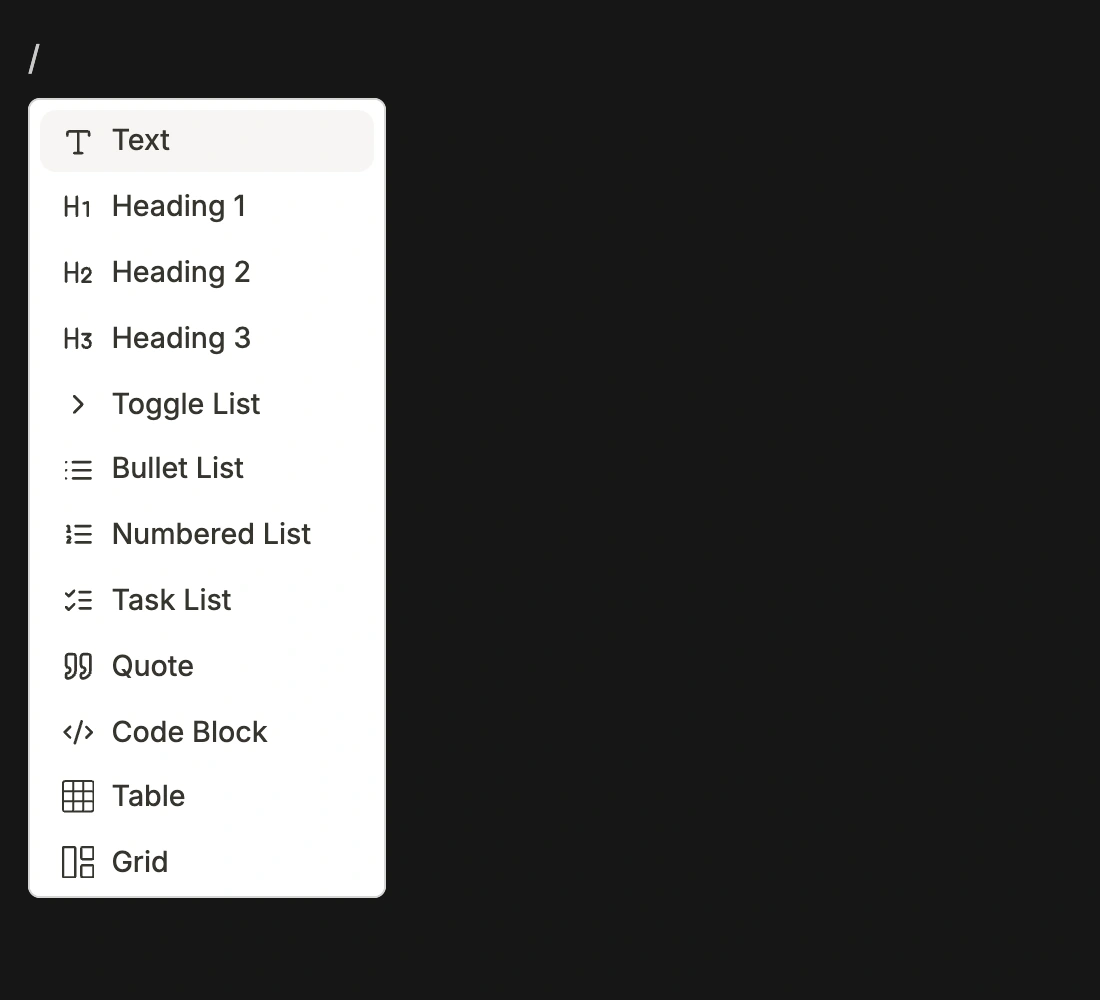
ONLINE NOTES / RICH TEXT EDITOR
Take notes online with Builto. Write study notes, meeting minutes, research, and project documentation. Add tables, images, checklists, and code, organize notes in tabs, and export your work.
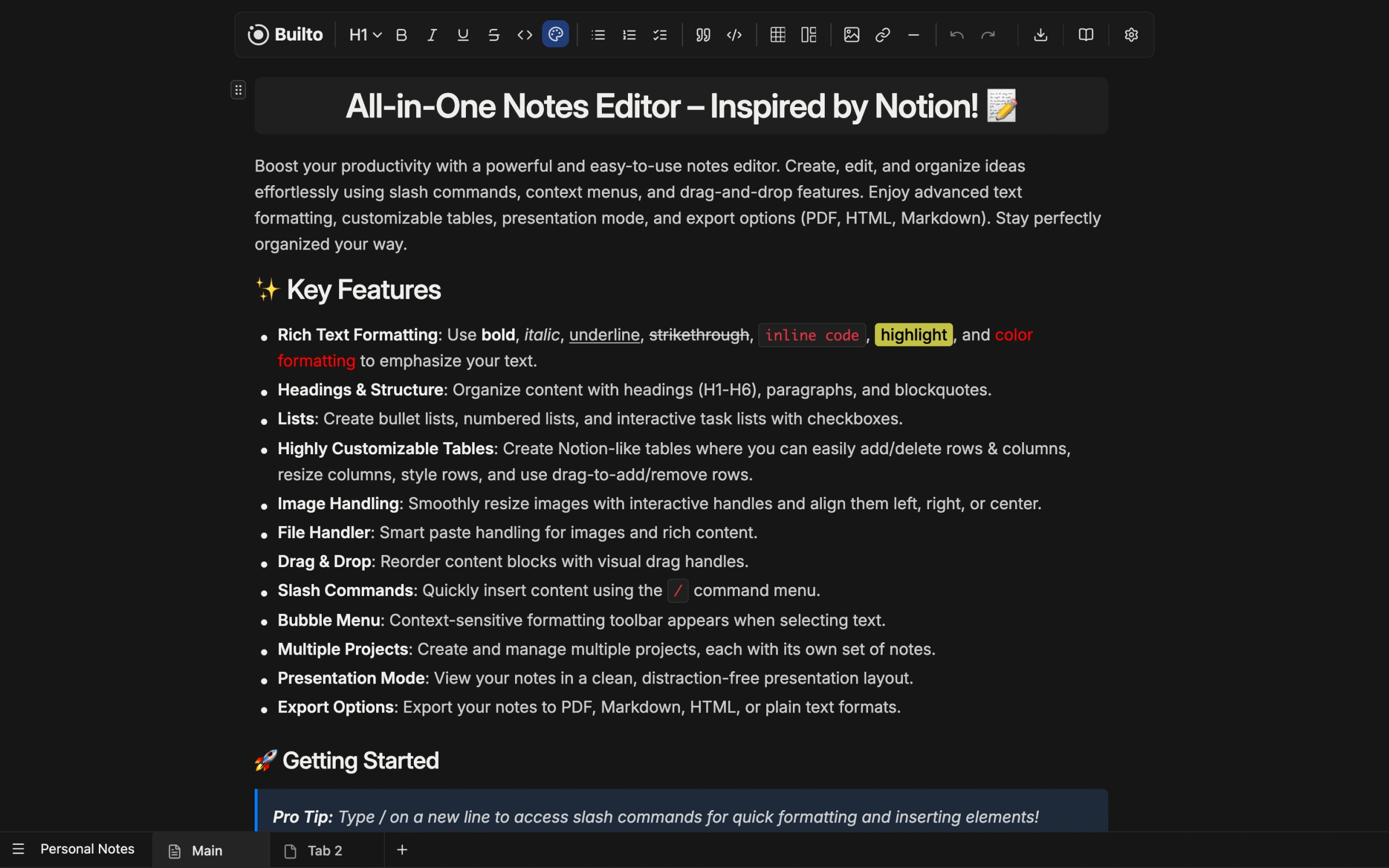
WRITE, ORGANIZE, AND PRESENT
RICH TEXT EDITOR
Use headings, bold, italic, links, lists, tables, and images. Type a slash to insert a new block without leaving your document.
View slash commands ↗PROJECTS AND NOTE TABS
Group your notes in a project. Add tabs for meeting notes, research, and follow-up actions, then switch documents from the bottom tab bar.
View note tabs ↗LISTS AND TABLES
Track tasks with checkboxes. Add rows and columns, resize table columns, and keep structured information alongside your writing.
View tables and lists ↗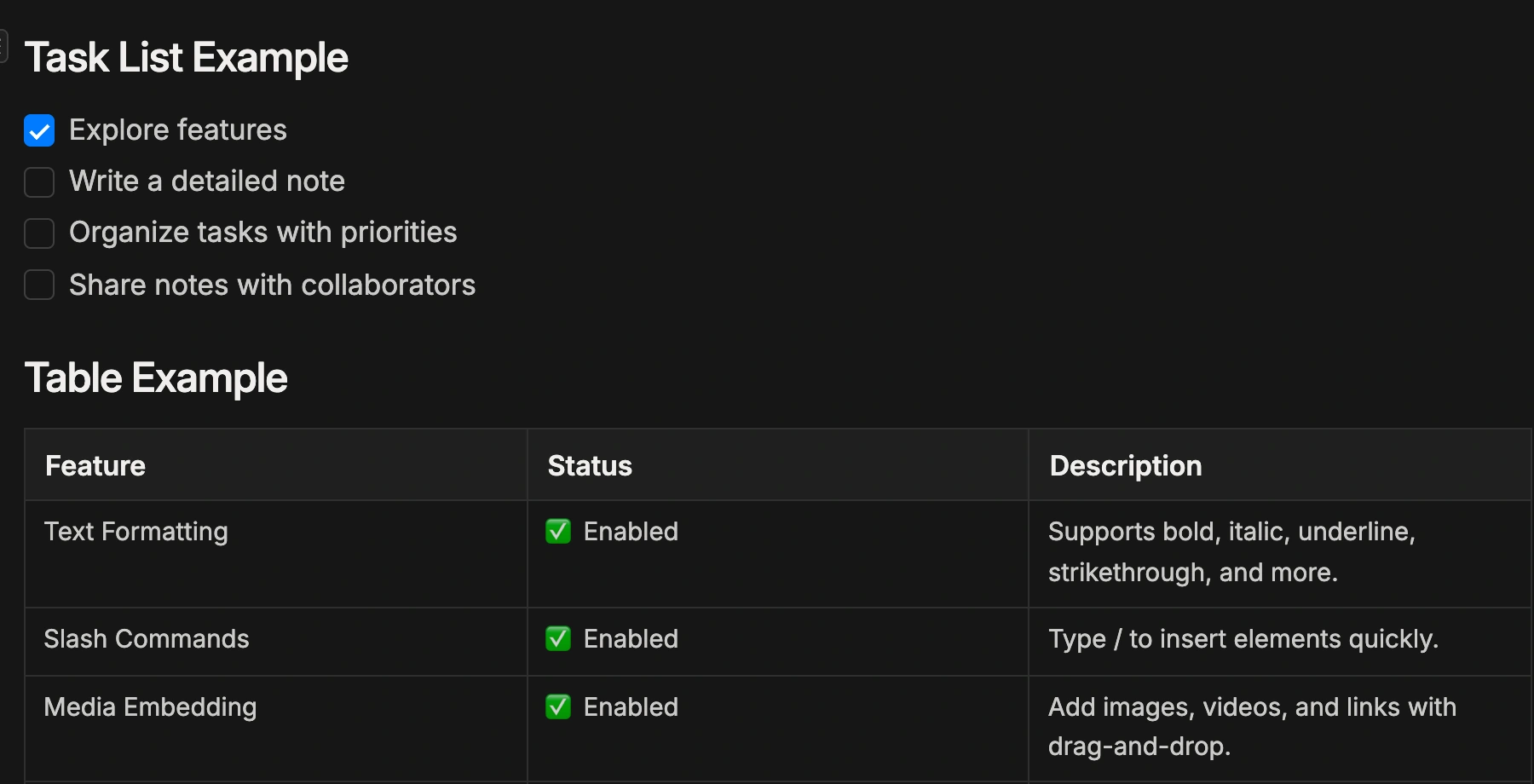
CODE AND IMAGES
Add code blocks, inline code, and images. Resize and align visual references within the note instead of keeping them in separate documents.
View code and images ↗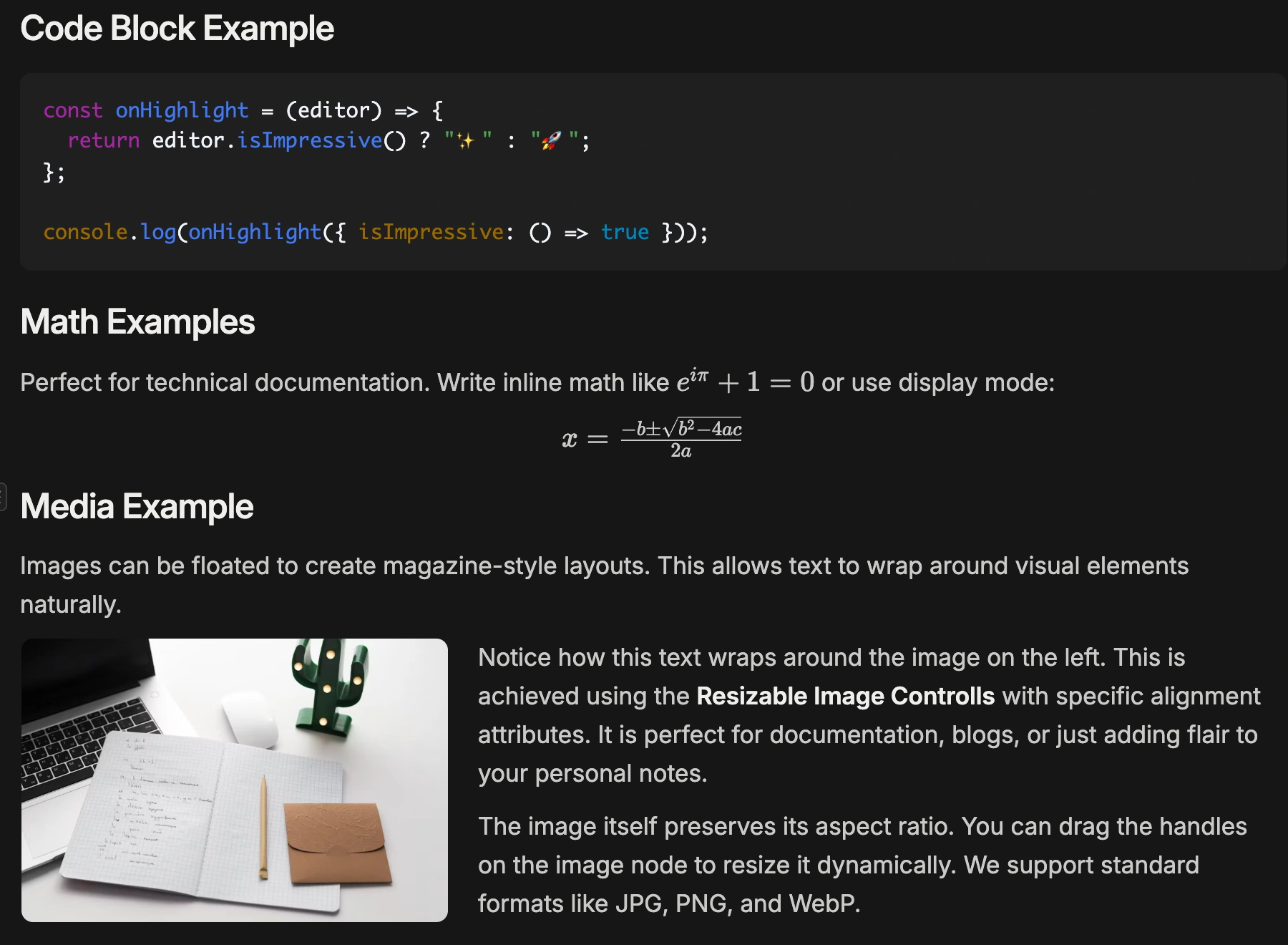
PRESENTATION MODE
Open presentation mode to hide editing controls. Each tab becomes a slide. Use navigation controls to switch notes, scroll through longer pages, and exit to return to editing.
View presentation mode ↗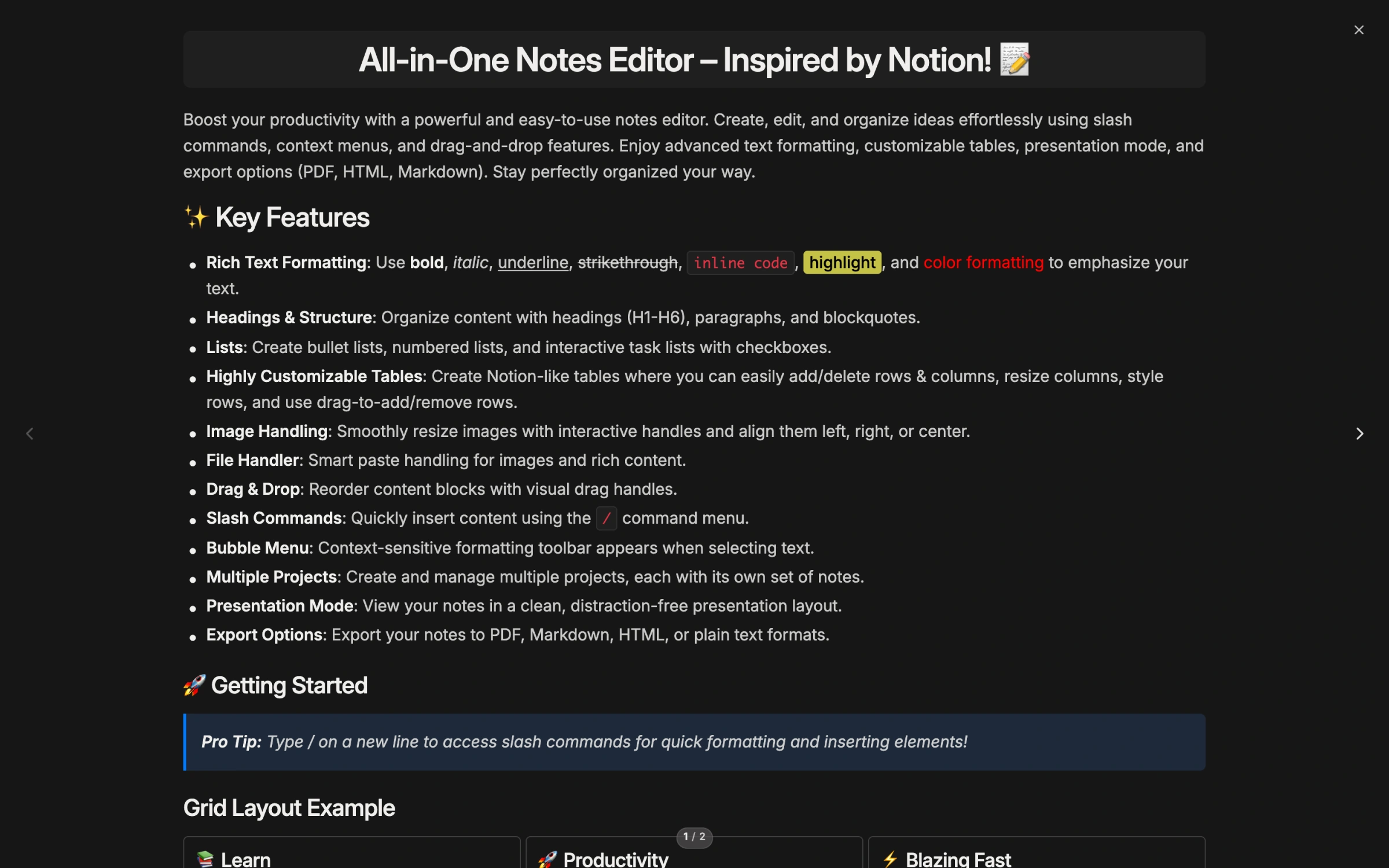
EXPORT AND PRINT
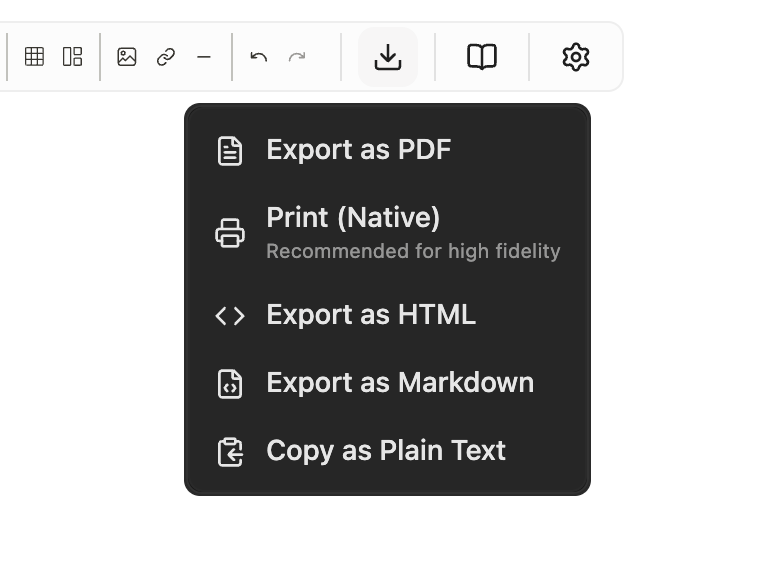
Open the download menu to export notes as PDF, HTML, or Markdown. Use native printing for a printed copy, or copy notes as plain text to paste elsewhere.
Before sharing, check images, tables, and page breaks in the exported file.
FEATURES AND COMMON USES
Use an online notepad to write notes in your browser. This browser notes app gives you a web text editor for quick notes, personal notes, and longer documents, with formatting when you need it.
Create study notes with headings for each topic. Use lecture notes to record explanations, class notes to summarize a lesson, revision notes to review key points, and a study checklist to track what remains.
Prepare meeting notes around a meeting agenda. Record meeting minutes, write action items in a task list, and keep a follow-up checklist in a separate tab for the next discussion.
Keep research notes alongside source links. Build a reading list, collect reference notes, write a research summary, and use comparison tables to organize differences between sources.
Use project notes for background and project documentation for instructions. Separate a project outline, a planning checklist, and a decision log into note tabs so each document has a clear purpose.
The rich text editor supports bold text, italic text, underlined text, and text highlighting. Add headings and subheadings to make long notes easier to scan, then revise with undo and redo.
Write bullet lists for ideas and numbered lists for instructions. Use checkbox lists as a to-do list, then add a table in notes when information belongs in rows and columns. Resize table columns to fit the content.
Create notes with images to keep visual references nearby. Resize images and adjust image alignment. For technical notes, use inline code or a code block, and add documentation links beside the explanation.
Use multiple note tabs to separate topics. Switch between notes from the tab bar, add a new note with the plus button, and organize notes by project. Browser storage lets you return to saved notes using the same profile and site.
Use presentation mode to show notes without editing controls. Tabs become note slides, so you can present notes from one project in sequence. Long documents remain scrollable when you read notes in this view.
Export notes to PDF for a document copy, export notes to Markdown for a text workflow, or export notes to HTML for formatted content. Print notes with native printing or copy notes as plain text for pasting elsewhere.
Choose a dark mode notes editor or the Classic theme. Change text size, adjust content width, and use a wider writing area for tables. Save a backup by exporting important notes before clearing browser data.
QUESTIONS AND ANSWERS
Open Notes and dismiss the welcome guide. Start writing in the editor or add a new tab with the plus button. Use headings to structure your note and the toolbar or slash commands to add other content.
This web version stores projects, tabs, and note content in local browser storage. Return using the same browser profile and site to access them. Clearing site data, switching browsers, or losing access to that profile can remove access to your notes. Export important work as a backup.
The current web implementation uses browser storage. Cross-device cloud sync and real-time collaborative editing are not part of this workflow. Export a file when you need to move or share your writing.
The editor supports rich text, headings, bullet and numbered lists, task lists, quotes, links, tables, images, code blocks, dividers, and masonry grids. Slash commands and the toolbar provide insertion controls.
Presentation mode shows your notes without the editing toolbar. Tabs in the current project become slides that you can move between, while long notes remain scrollable. Exit the presentation to return to editing.
The export menu offers PDF, HTML, and Markdown downloads, native printing, and Copy as Plain Text. Review exported formatting, images, and page breaks before sharing the result.
Yes. Notes Settings offers Classic and Dark themes, three base text sizes, and small, medium, or large content widths. These preferences are stored in your browser.
The current Notes web app opens directly without a sign-in step and stores work in the browser. Keep exported backups of anything you need to retain.
BUILTO NOTES
Open the editor to write, organize notes in tabs, and export a copy when you are ready.