
Markdown editor with live preview
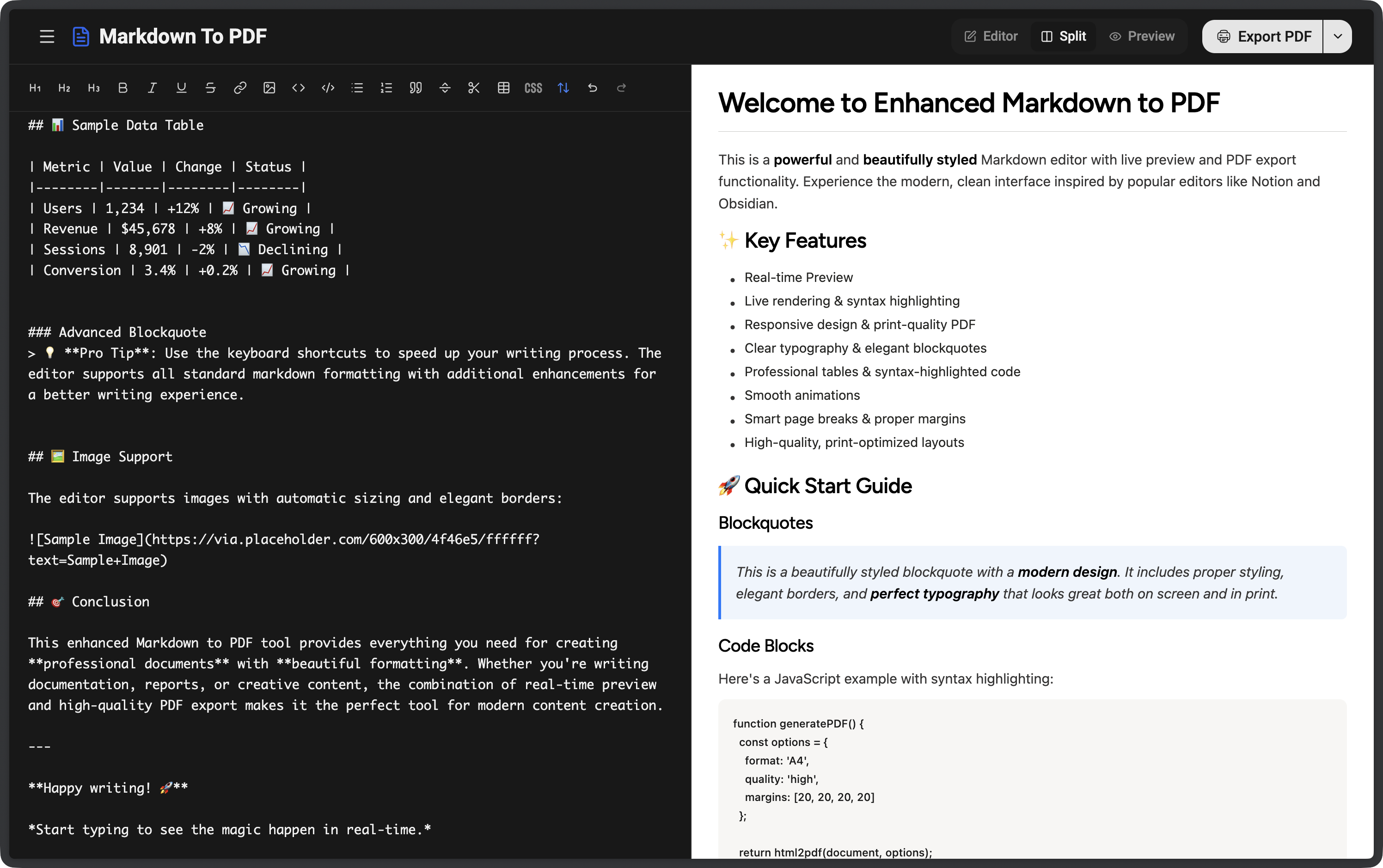
Write Markdown and check the rendered document beside it. Switch between Editor, Split, and Preview modes to focus on writing or review the formatted page.
Builto Markdown to PDF
Write Markdown, preview your document, and export a PDF.
Format headings, tables, and code blocks in one browser-based editor.
How to convert Markdown to PDF
Use Markdown syntax for your content and the preview to check its formatting before creating a PDF.
Start with notes, documentation, or text copied from a .md file. Add headings, links, lists, and code with Markdown syntax or the formatting toolbar.
Use Split mode to see the source and formatted page together. Switch to Preview to review your document, including tables, images, and blockquotes.
Select Export PDF to create a document for sharing or printing. Open the PDF to check page breaks, wide tables, and long code lines.
Markdown editor features
Use a Markdown editor with live rendering, syntax highlighting, and custom CSS to prepare your document before PDF export.
Write Markdown and check the rendered document beside it. Switch between Editor, Split, and Preview modes to focus on writing or review the formatted page.
Structure your document with headings, bold and italic text, numbered lists, bullet lists, and links. Use the formatting toolbar when you need a Markdown shortcut.
Organize comparisons and report data in tables. Add blockquotes for quoted passages, references, and notes, then check their layout in the preview.
Include inline code and fenced code blocks in technical documents. Review syntax-highlighted examples alongside the rest of your documentation.
Use custom CSS to style reports and other Markdown documents. Review the appearance before exporting and check the final PDF before sharing it.
Use Export PDF to turn your formatted Markdown into a PDF document. Keep a PDF copy for sharing, printing, a project handoff, or a study folder.
Documents you can create
Use the online Markdown converter when you need a PDF version of text written in Markdown.
Format setup instructions, API notes, code examples, and project documentation. Convert README content written in Markdown into a PDF copy for a project handoff.
Write a project report, organize sections with headings, and compare information in a Markdown table. Export a document that can be read outside a Markdown editor.
Turn Markdown notes, lesson outlines, and written tutorials into PDF documents. Combine explanations, lists, quotations, and code snippets in the same document.
Questions and answers
Builto Markdown to PDF
Write or paste Markdown, check the live preview, and export a PDF for sharing or printing.