
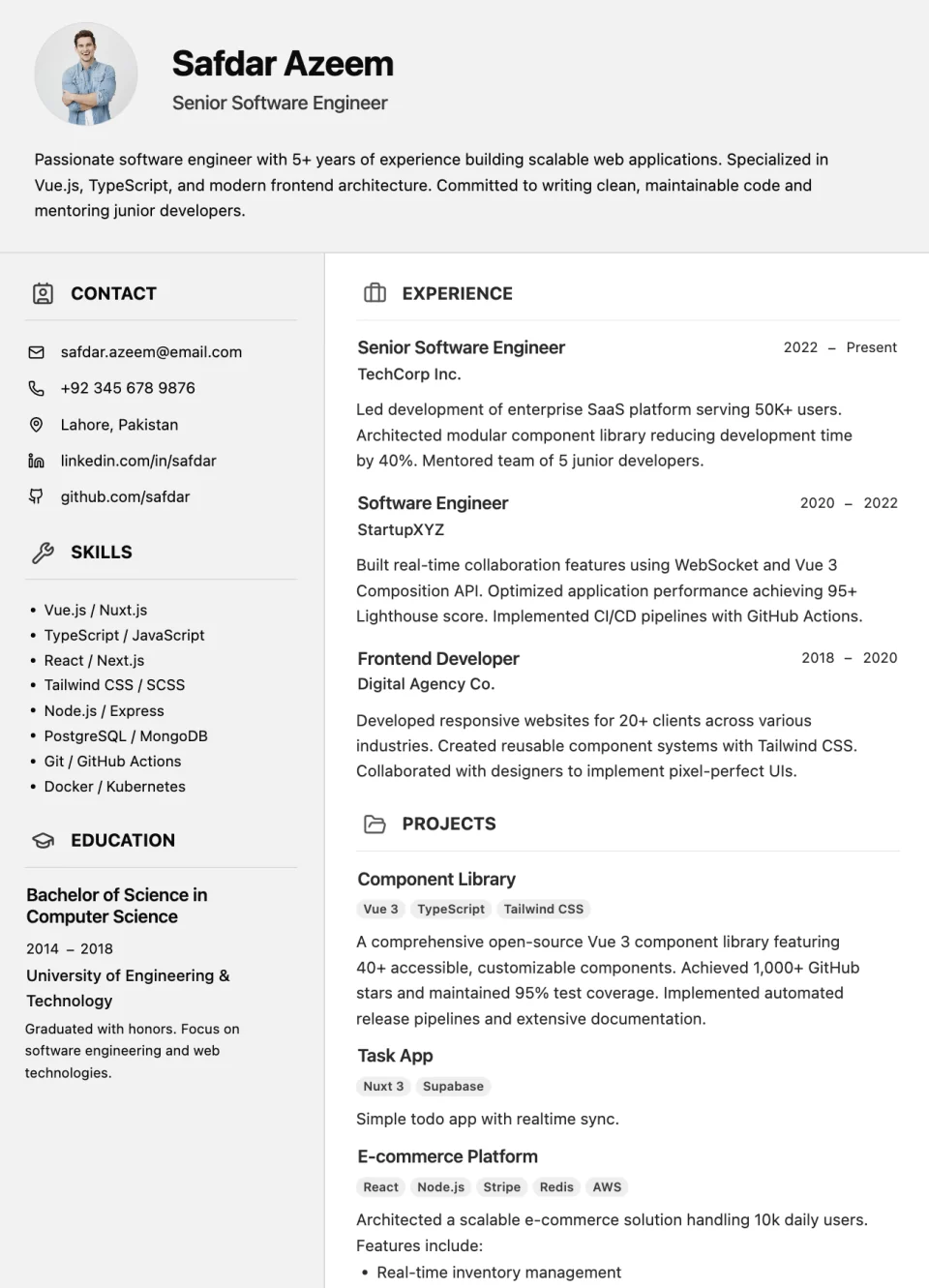
Resume template
Momentumresume template
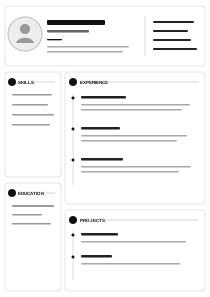
A two-column resume with a full-width profile header, contact and skills on the left, and experience and projects on the right.
Choose a resume layout that fits your experience, then edit it online and download a PDF. Every template supports your profile, contact details, skills, work experience, education, and projects, and you can switch templates later without retyping your content.
5 layouts
Resume template
A two-column resume with a full-width profile header, contact and skills on the left, and experience and projects on the right.
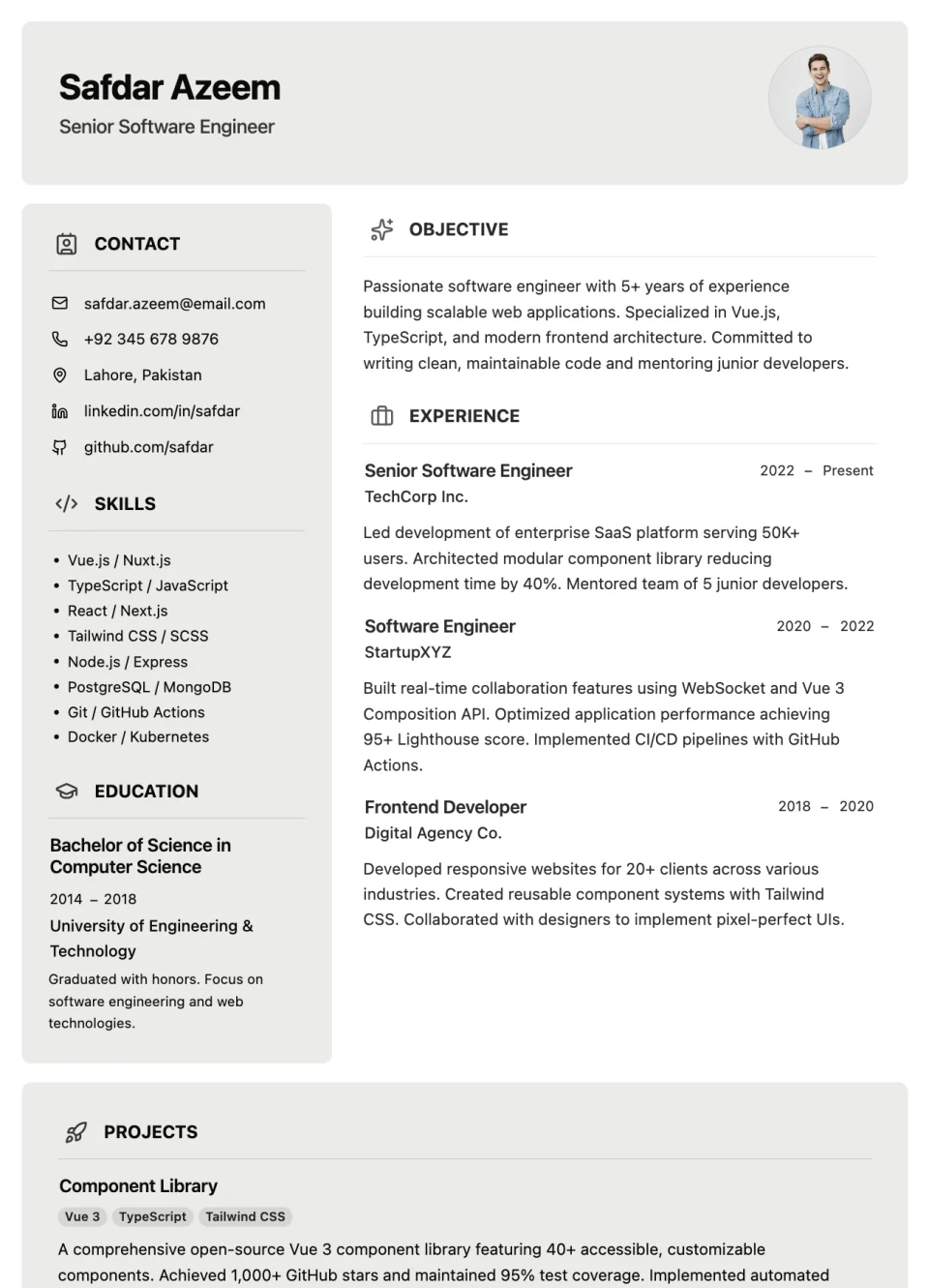
Resume template
A two-column resume with a boxed name header, an objective above your experience, and a full-width projects section at the bottom.
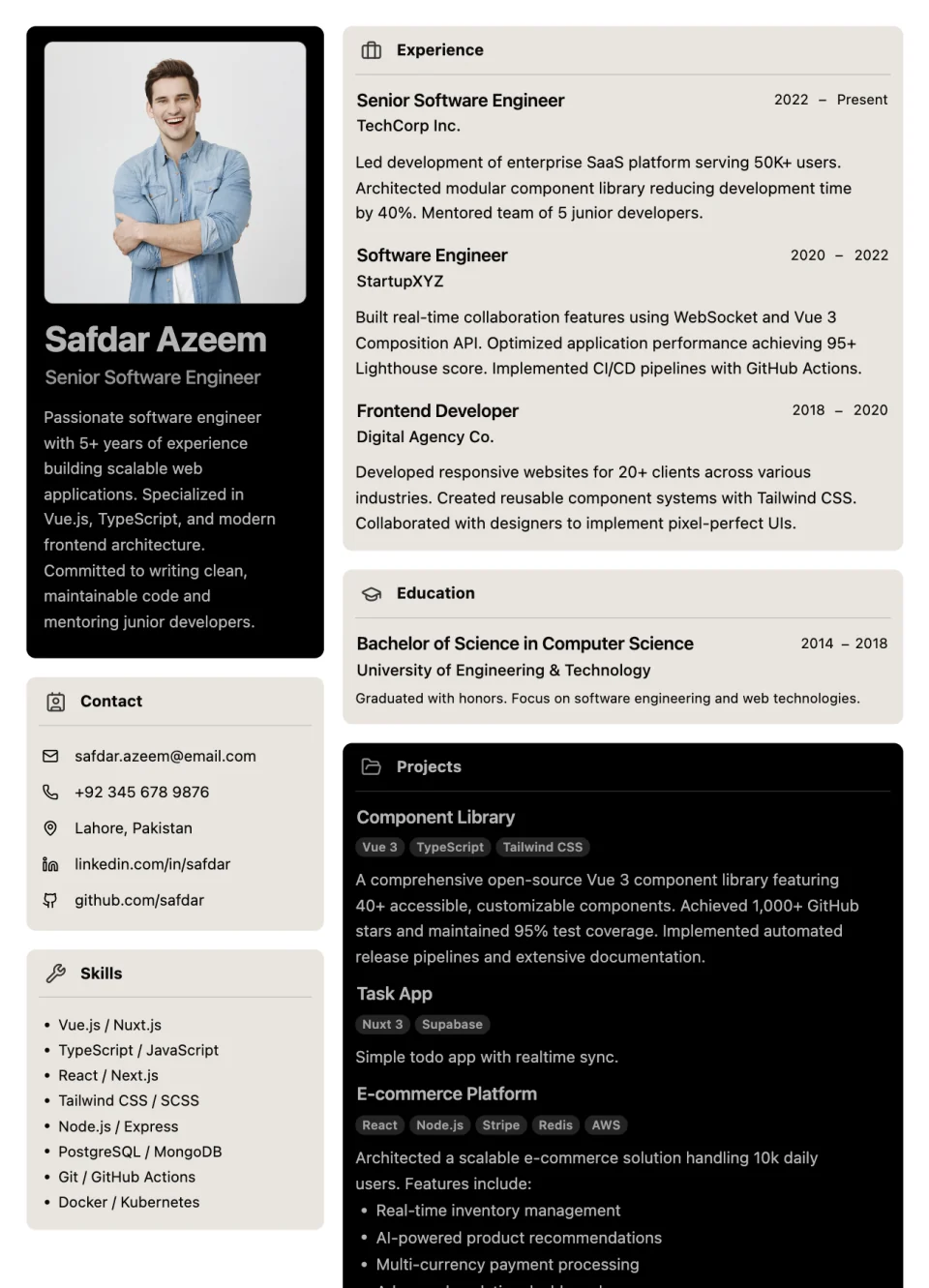
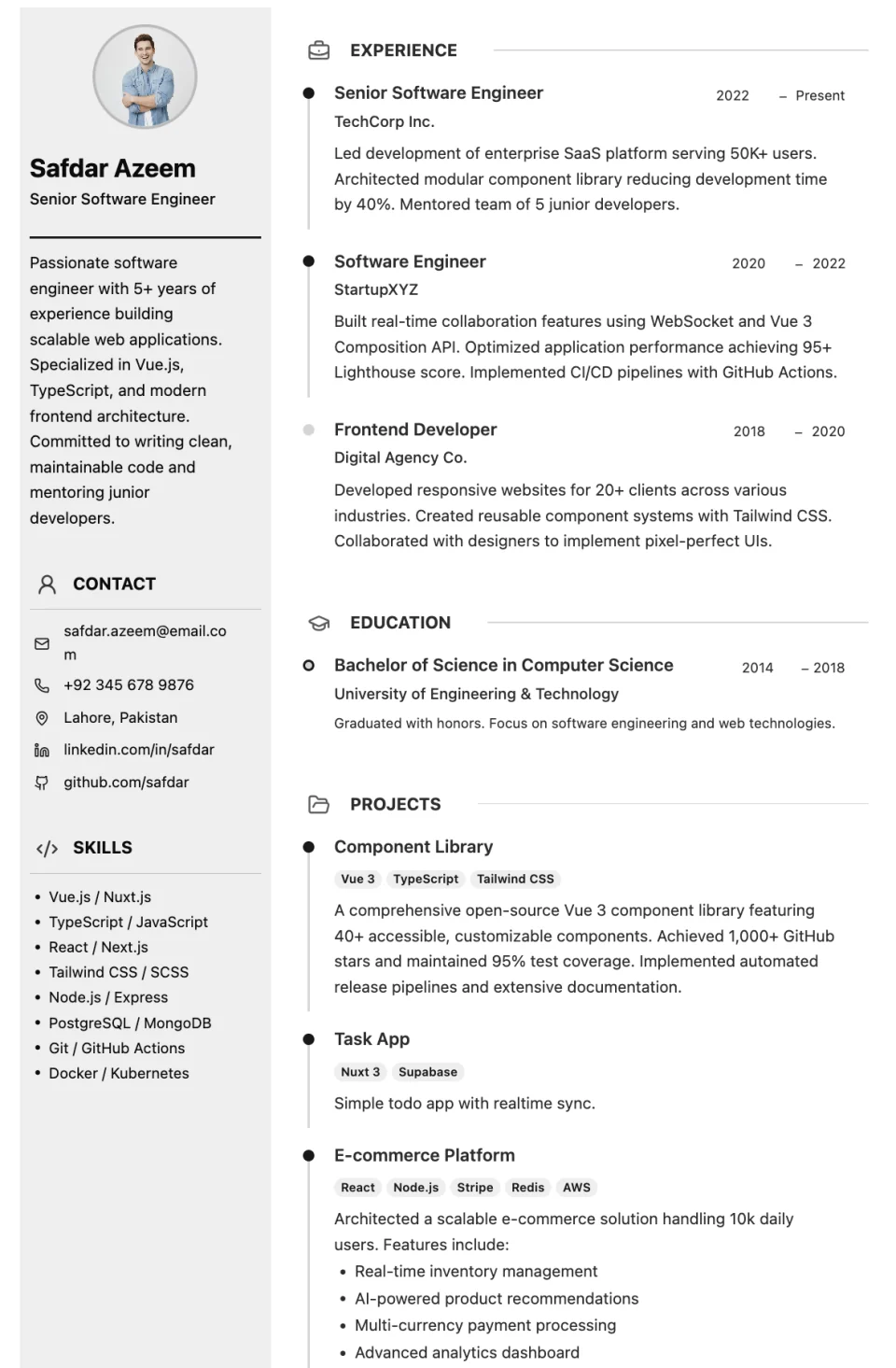
Resume template
Minimal profile sidebar with refined timeline sections and blue accents.
Resume template
Polished profile header with structured career and qualification cards.
Choosing a layout
Two-column layouts such as Momentum, Zenith, and Premium Sidebar keep contact details, skills, and education in a narrow column so your work history gets the most space. Card layouts such as Bento and Executive Grid separate each section into its own block.
If your experience is the main story, choose a layout that gives the experience column the most width. If you are a student or changing careers, a template with an objective and a visible projects section helps explain your direction.
Recruiters scan quickly. Whatever layout you pick, keep headings clear, bullet points short, and check the downloaded PDF and page breaks before sending it.
Step by step
Open Resume Builder, sign in, and select a template. Set its colours and text size, then create your resume.
Click any text on the page to replace the sample content. Add, remove, or reorder entries and rename headings to fit your experience.
Review the layout and page breaks, then use Export as PDF. You can also print or share a public link.
Want the full feature tour first? Explore Resume Builder
Questions and answers
Builto Resume Builder
Resume Builder opens its template step, where you select the template, set its starting style, and create your resume.