
Builto Resume Builder
Your experience.
A resume that
brings it together.
Create a resume online, from your first introduction to the final PDF. Choose a template, edit your story directly on the page, and shape the details around your next opportunity.
Sign in to create and save your resumes.
- Editable templates
- Live canvas
- PDF export
From template to application
A clear path to your next resume.
- 01
Choose a template
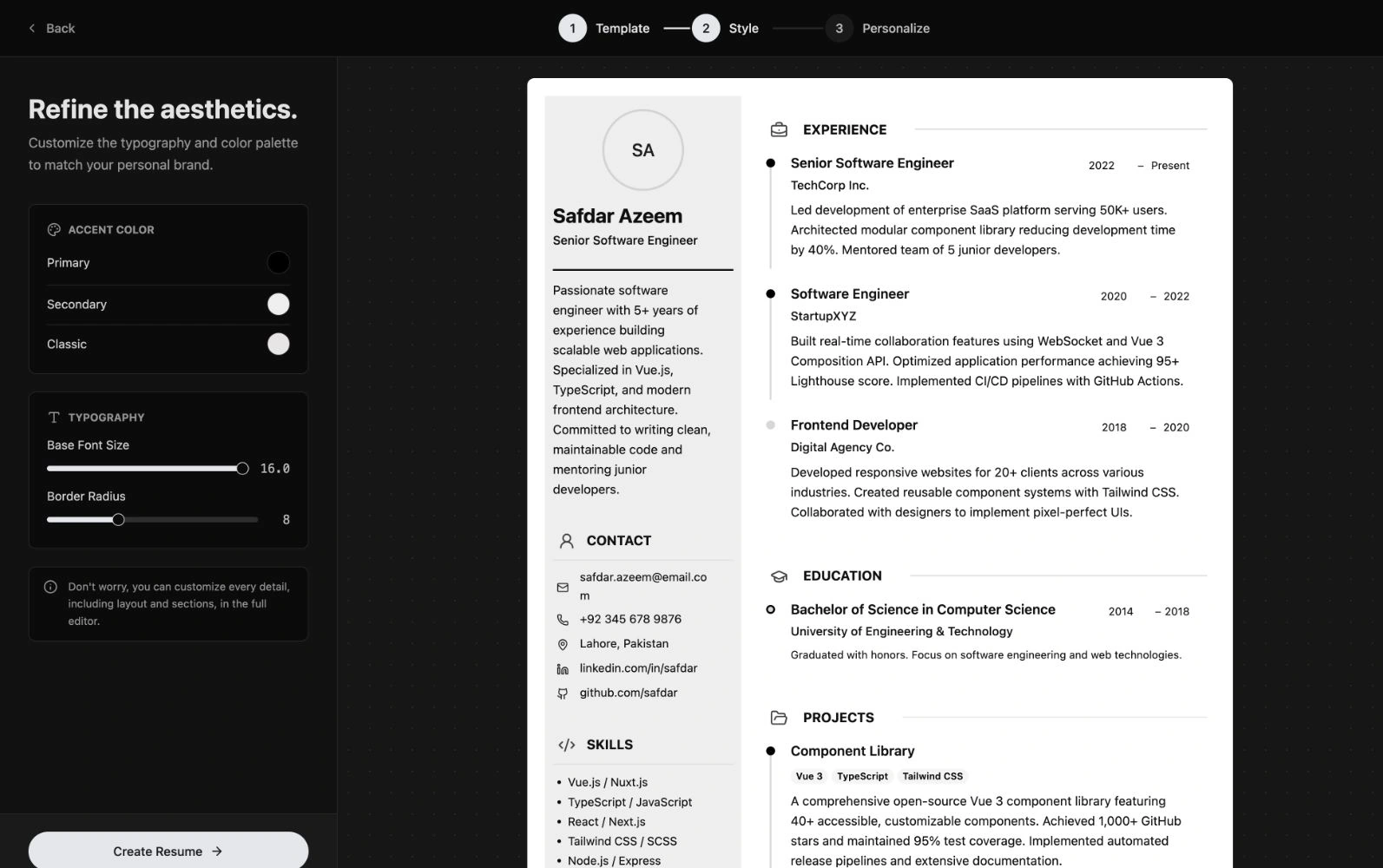
Start with a layout, then adjust its colors and text size before opening the editor.
- 02
Make it your story
Replace the sample content with your profile, experience, education, skills, and projects.
- 03
Review and export
Check your resume on the canvas, refine the spacing, then export a PDF or print it.
01 / A starting point
Start with structure.
Make it your own.
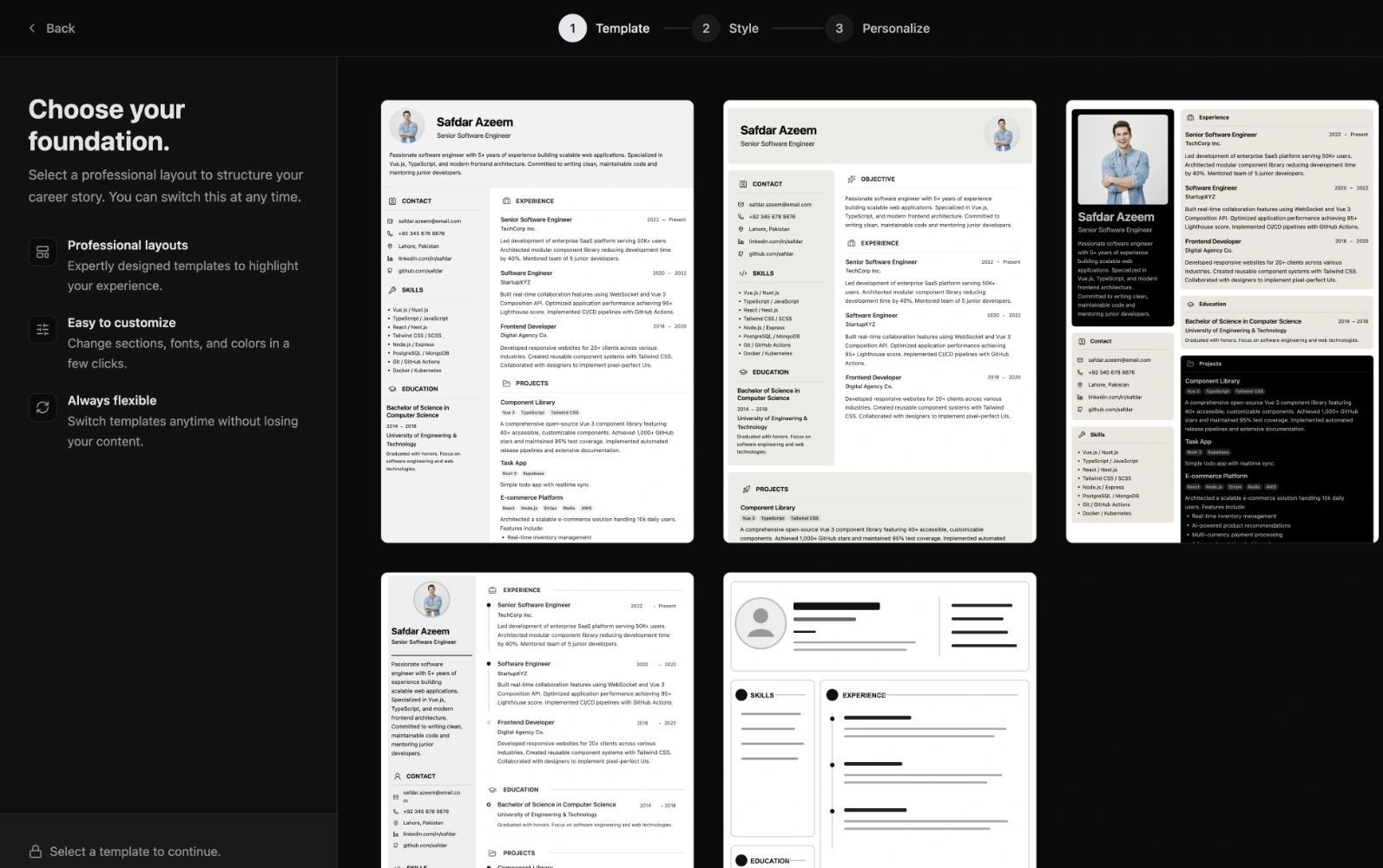
Choose from Momentum, Zenith, Bento, Premium Sidebar, and Executive Grid. Explore different arrangements for your profile and career details before committing to a design.
The creation flow lets you set colors and text size before you personalize the content. You can also switch templates later in the editor; your content stays, while the new template supplies its own styling and arrangement.
02 / Your content
Tell the whole story,
one section at a time.
Click into the resume to edit text where it appears. Replace the examples, format descriptions, and use entry controls to add, remove, or reorder relevant details. Available sections and presentation options depend on the template.
- Profile & contact
- Introduce yourself with a name, role, summary, and optional photo. Add contact details and relevant links.
- Experience
- Describe your roles, employers, dates, and achievements. Add or reorder entries to emphasize relevant work.
- Education
- Include qualifications, institutions, dates, and supporting details for your academic background.
- Skills
- Present the abilities that matter for the role, with editable skills content and template-specific display options.
- Projects
- Show what you have made through project descriptions and technology tags, from coursework to client work.
- Objective & section headings
- Use the objective section in supporting layouts and edit section headings to suit your career story.
03 / The details
Refine the design.
See the difference.
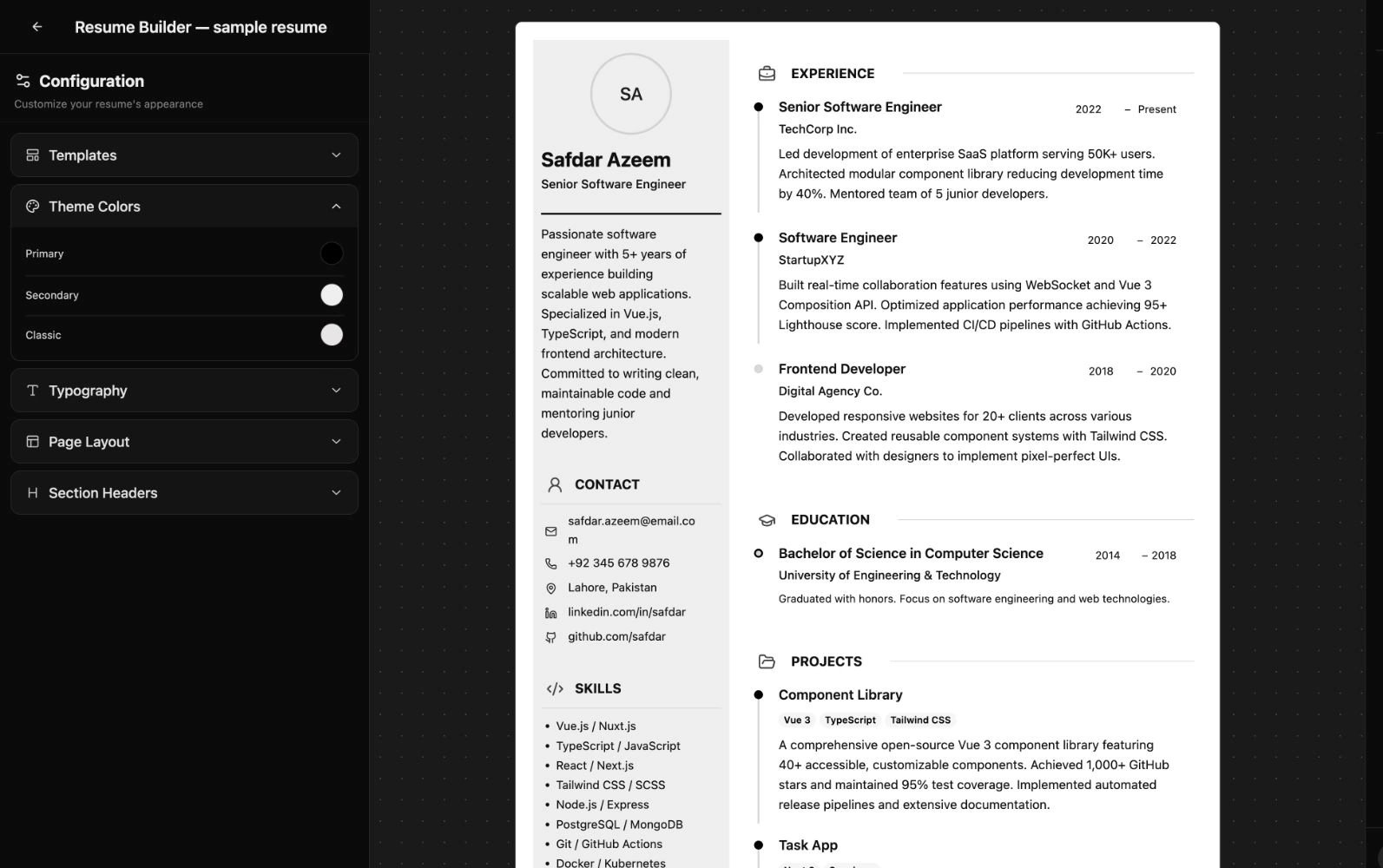
Keep the resume canvas in view as you edit. Zoom in to work on details and scroll through the document to review longer sections.
- Color and type size. Set theme colors, adjust the base text size, and refine rounded corners.
- Page layout. Adjust top, right, bottom, and left margins in the editor.
- Section headings. Customize heading treatment, alignment, capitalization, and size.
Room to revise
Undo and redo edits as you work. Autosave and its status indicator help you see when your changes have reached your account, ready to revisit from Recent Resumes.
04 / Ready to send
Take your resume
to the next step.
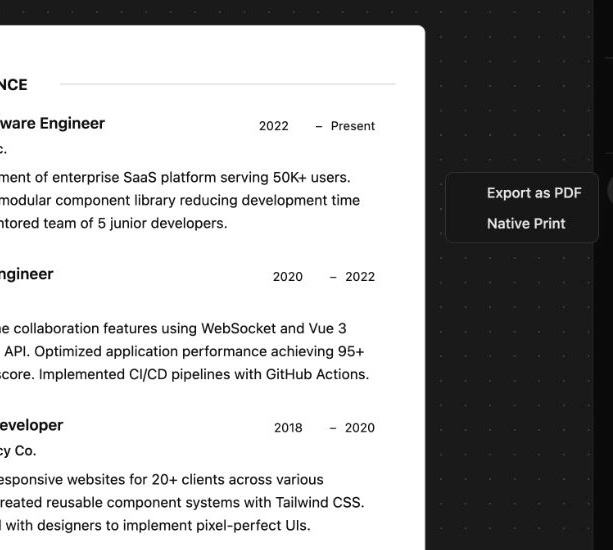
Use Export as PDF to download your resume for a job application, or Native Print to open the browser’s print flow. Check the finished file and page breaks before sharing it.
Prefer to send a link?
The Share control lets you turn on Public to Everyone and copy a viewing link. Anyone with the link can view the public resume. Keep sharing off when you want the document to remain private.
Different paths. One place to begin.
For the opportunity ahead.
Your first application
Give education, skills, and coursework projects space when you are applying for internships or a first job.
Your next role
Update recent experience and focus your achievements on the position you are applying for.
A change of direction
Bring transferable skills and relevant projects forward when moving into a new field.
Freelance opportunities
Summarize client experience and selected projects in a document you can send alongside your portfolio.
A few more details
Resume Builder FAQ
How do I create a resume with Builto?
Open Resume Builder and sign in. Choose Create New, select a template, adjust its initial style, and select Create Resume. In the editor, replace the sample content with your own details, review the layout, and export when ready.
Which resume templates are available?
The builder includes Momentum, Zenith, Bento, Premium Sidebar, and Executive Grid. You can select a template when creating a resume or change it from the editor’s Templates panel.
Can I change templates after writing my resume?
Yes. Switching templates keeps your resume content and applies the new template’s default styles, section arrangement, and visibility. Review the result after switching because the new layout may show different sections.
What can I customize?
Edit content directly on the resume canvas. The configuration panel includes theme colors, base text size, border radius, page margins, and section-header styling. Individual sections also have controls that depend on the selected template.
Can I download my resume as a PDF?
Yes. Open Export / Print in the editor and choose Export as PDF. Native Print is also available. Review the finished document and its page breaks before sending it with an application.
Are changes saved automatically?
The editor automatically saves changes to your account and shows saving, saved, or unsaved status. Wait for Saved to cloud before leaving, and check your connection if saving fails. Your documents are available from Recent Resumes.
Can I share a resume online?
Yes. The Share control lets you enable Public to Everyone and copy a viewing link. Anyone with that link can view the public resume, so enable it only when you want to share its contents. You can turn public sharing off again.
Do I need an account?
Yes. Resume Builder opens through Builto sign-in so that you can create, save, and return to your resumes. You can explore this product page without signing in.
Your next chapter starts here
Bring your experience
onto the page.
Choose a template, make it yours, and prepare a resume for the opportunity you have in mind.