Skip to content
Builto

Builto Canvas / Online drawing tool

Online whiteboard for
drawing and diagrams.

Draw flowcharts, mind maps, and project plans on an infinite canvas.
Add notes beside your drawing and export PNG, JPEG, or SVG.
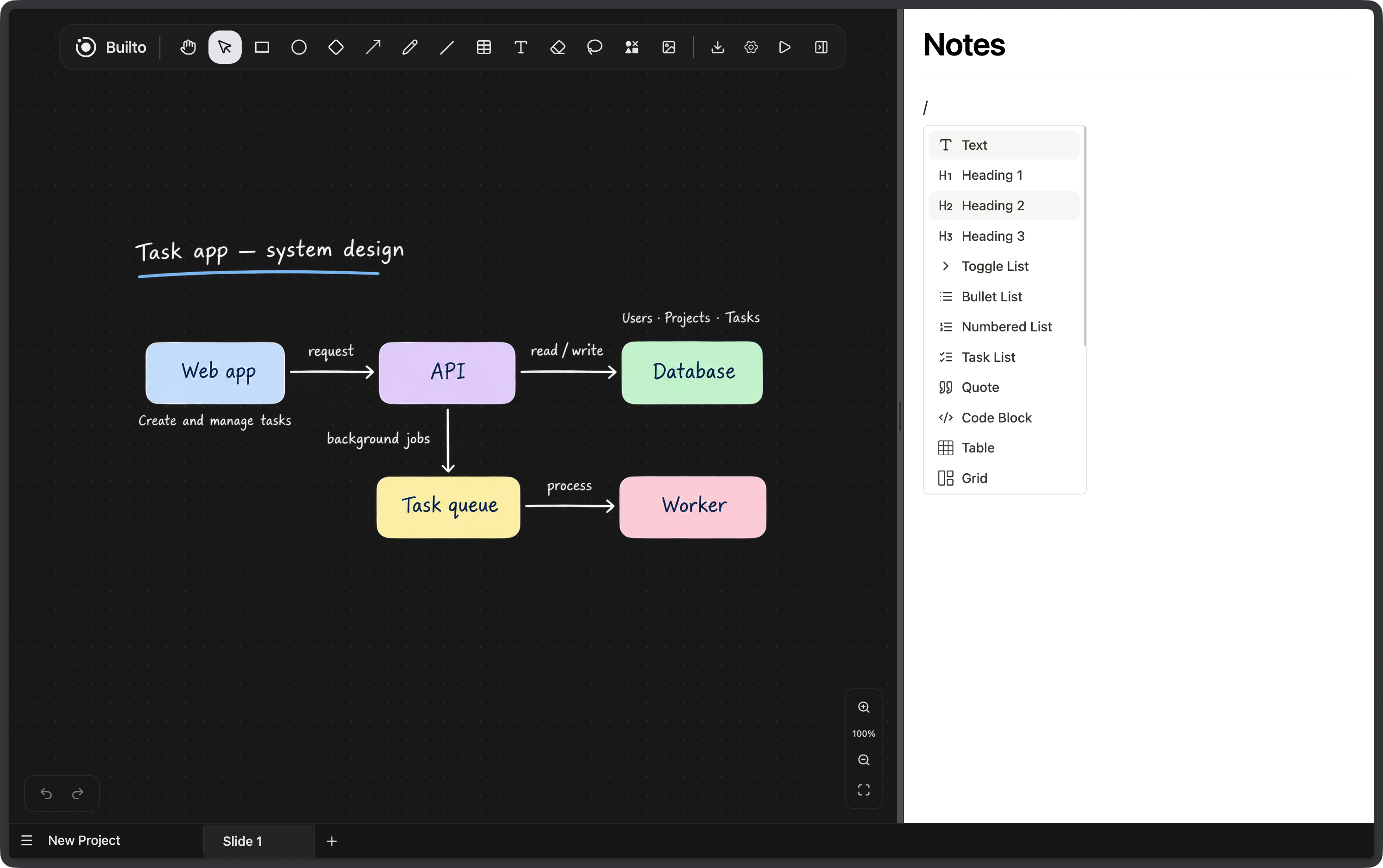
Builto Canvas online whiteboard with a product planning diagram, colored shapes, arrows, handwritten labels, and wireframe sketches in the dark drawing workspace.
Canvas workspace · Product planning example (edited illustration)

Drawing tools and project organization

Create diagrams.
Keep your drawings organized.

Use the pen for freehand sketches. Add rectangles, circles, diamonds, text labels, and connector arrows to draw a diagram. Pan across the board and zoom in to edit the details.

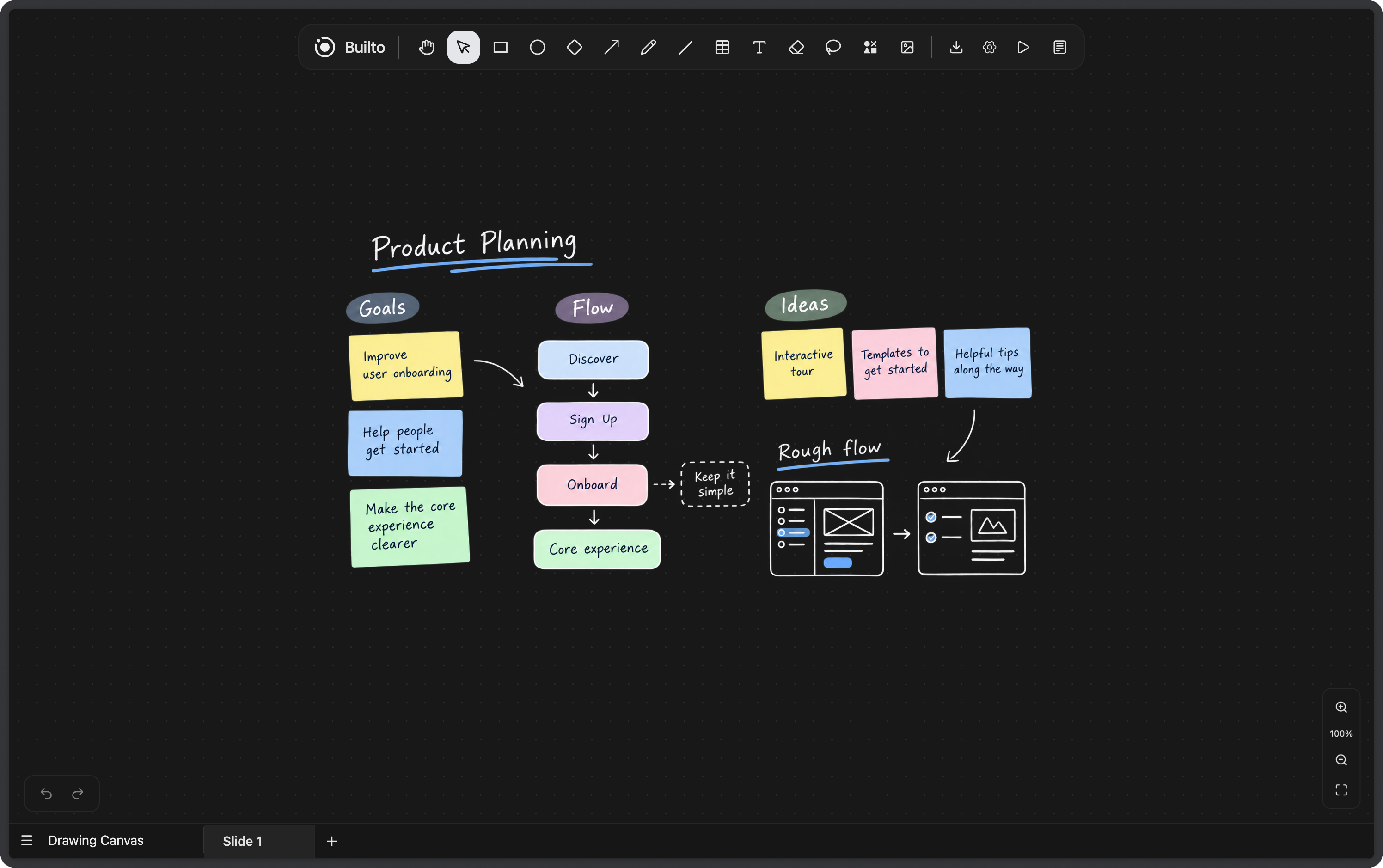
Canvas diagram editor showing a task app system design with Web app, API, Database, Task queue, and Worker, alongside the original Notes panel.
Canvas and Notes · System design example (edited illustration)

Draw diagrams and write notes.

Keep a visual explanation and its written details together. Open the Notes panel for an outline, a checklist, meeting notes, or project documentation while your diagram stays in view.
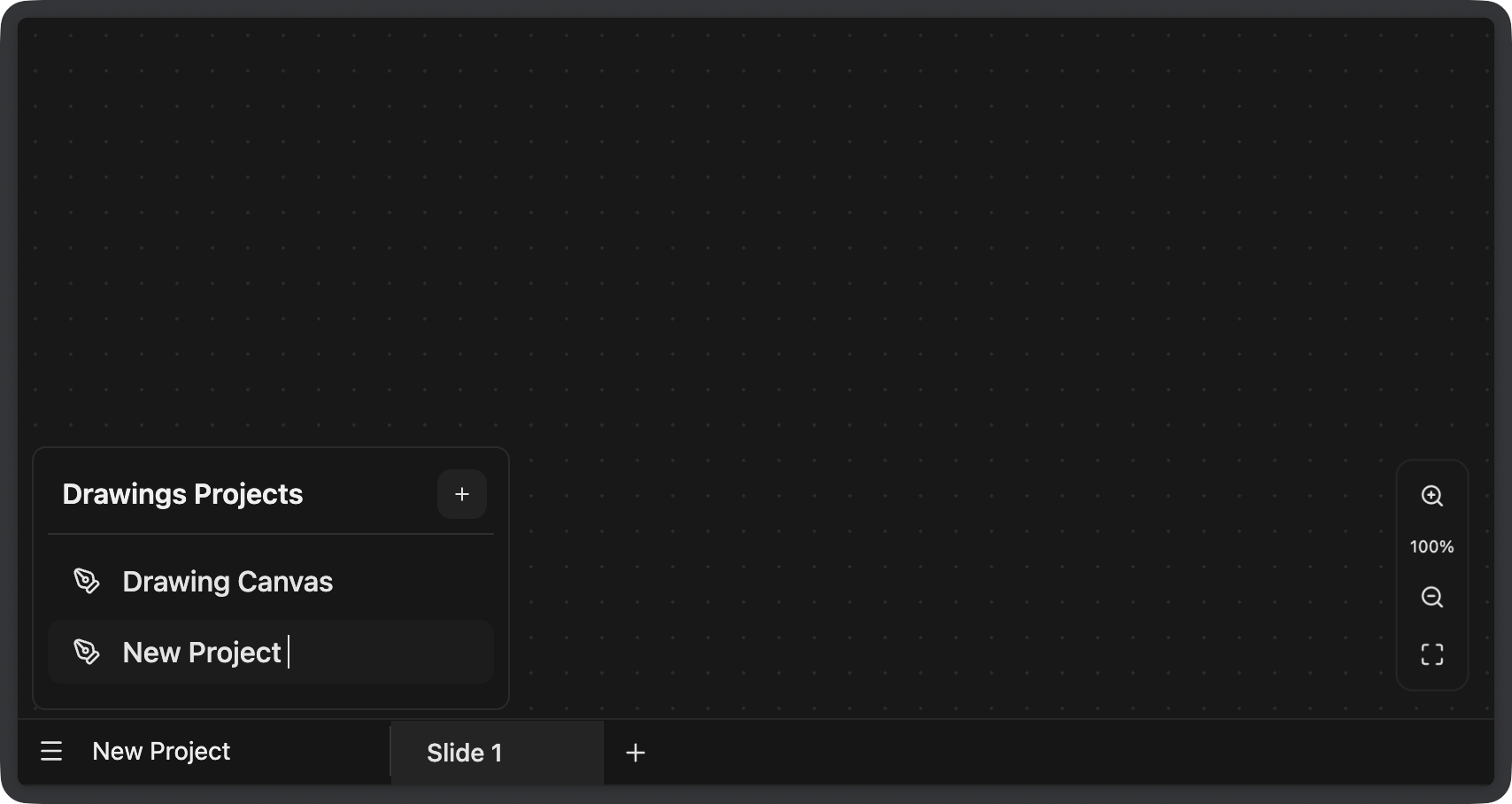
Canvas project menu with Drawing Canvas and New Project entries, drawing slide tabs, and zoom controls in the complete dark app window.
Canvas workspace · Projects and slide tabs

Organize projects and drawing slides.

Group related drawings in a project. Add a slide for another diagram, a different plan, or the next step in a process. Switch drawings using the tabs at the bottom of the workspace.

Freehand drawing
Sketch with the pen and add annotations to explain a diagram.
Shapes, arrows, and text
Build labeled diagrams and connect steps with lines and arrows.
Colors and canvas settings
Adjust strokes and text sizes. Choose a light or dark theme and a dotted or solid background.

Whiteboard presentation

Present your diagrams
one slide at a time.

Use presentation mode to explain a flowchart, walk through a system design, or teach a topic. Move through the drawing slides in your project, then return to the editor to make changes.
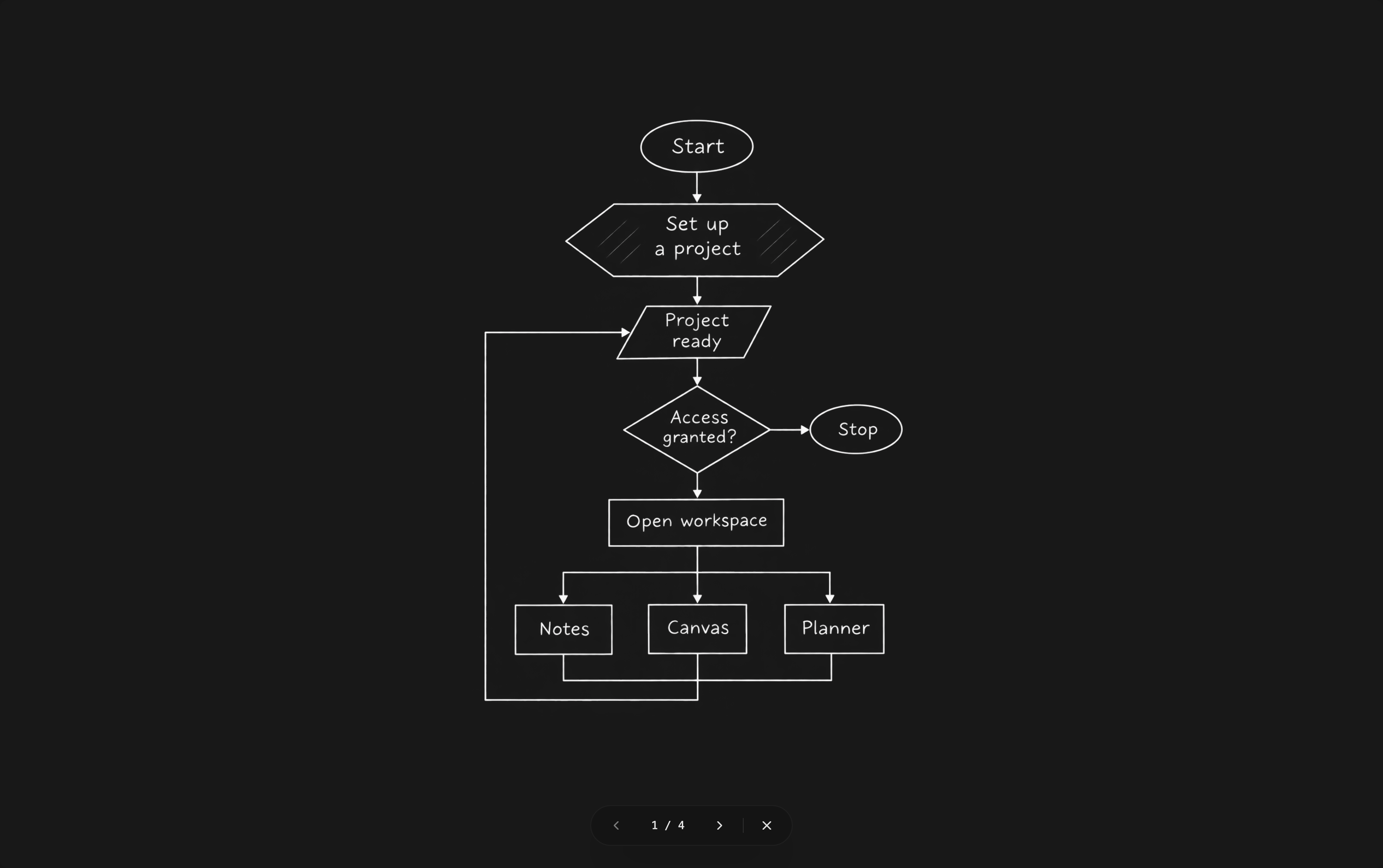
White project workflow diagram on the dark Canvas presentation screen, with Start, project setup, access decision, workspace, and Notes, Canvas, and Planner branches.
Presentation mode · Project workflow example (edited illustration)
  • Separate drawing slides
  • Previous and next controls
  • Return to editing

Export your drawing

Export your whiteboard
as PNG, JPEG, or SVG.

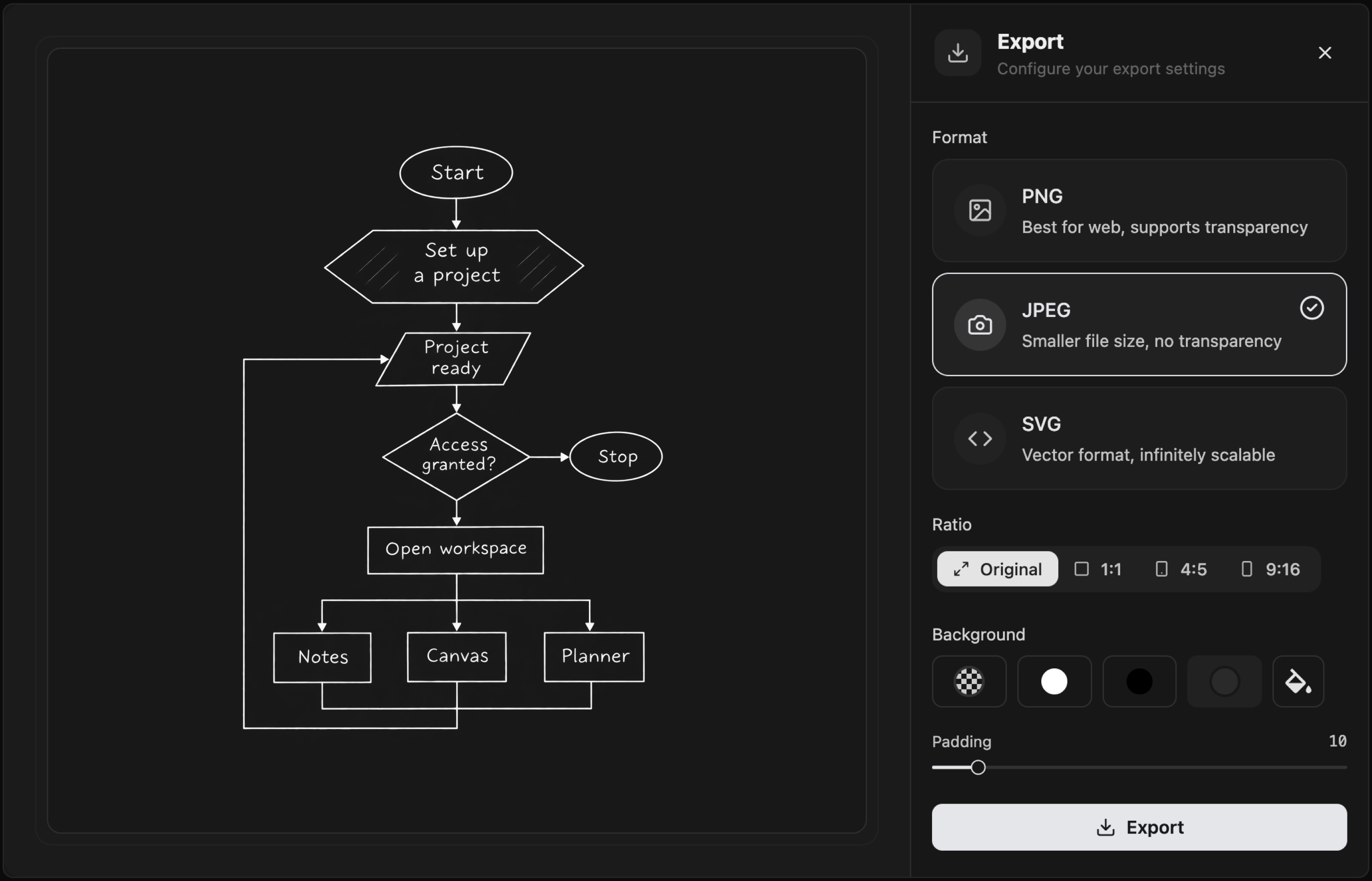
Download a diagram for a document, presentation, tutorial, or project discussion. Choose the aspect ratio, background, and padding before exporting.
PNG
Export a drawing with a transparent background.
JPEG
Download a compact image with a solid background.
SVG
Save scalable vector shapes for use at other sizes.
Canvas export dialog with a project workflow in the left preview and PNG, JPEG, SVG, aspect ratio, background, padding, and Export controls on the right.
Export preview · Project workflow example (edited illustration)

Whiteboard and diagram examples

What can you make
with an online whiteboard?

Use Canvas as a drawing board, diagram maker, or visual planning tool. Start with a blank canvas and build your own diagrams with shapes, text, and connections.

Flowcharts and process maps

Use rectangles for steps, diamonds for decisions, and arrows for connections. Create a process flow diagram, explain a workflow, or draw a decision tree from start to finish.

Example: a user registration flowchart.

Mind maps and concept maps

Start with a topic, add related ideas, and connect them with lines. Use a mind map for brainstorming, a concept map for study notes, or an idea map to organize research.

Example: a mind map for a lesson plan.

System design and architecture diagrams

Draw an application architecture with labeled shapes and arrows. Map a web app, API, database, and background jobs to explain how a software system works. Build these diagrams by hand on the canvas.

Example: a task app system design diagram.

Product planning and wireframe sketches

Map a user journey, sketch a screen layout, and outline an onboarding flow. Use simple wireframes and product planning diagrams to compare ideas before building a feature.

Example: a product onboarding user flow.

Teaching, tutorials, and explanations

Use a digital whiteboard to explain a topic with drawings, text, and colors. Prepare a lesson diagram, break a tutorial into slides, or use presentation mode while explaining a process.

Example: a whiteboard presentation for a tutorial.

Brainstorming and project planning

Make a visual project plan, group ideas, and keep meeting notes beside the board. Draw a task sequence, sketch a project roadmap, or use a planning board to prepare for a discussion.

Example: a project plan with steps and notes.

Questions and answers

Online whiteboard
questions and answers.

An online whiteboard is a drawing space in your web browser. Builto Canvas is a browser-based whiteboard for sketches, diagrams, visual notes, and project plans. Add shapes, arrows, and text to explain ideas on a single board.
Yes. Open Canvas in your browser to use the online drawing tool. Use the pen for freehand drawing, sketch an idea, or annotate a diagram. You do not need to install a desktop drawing application to use the web canvas.
Add shapes for the steps in your process, label each shape, and connect them with arrows. Use a diamond for a decision and separate arrows for its outcomes. This makes Canvas a manual flowchart maker for workflow diagrams, process charts, and decision flowcharts.
Yes. Write your main topic in the center, arrange related topics around it, and connect them with lines. Use colors and labels to separate branches. You can create a brainstorming mind map, a study concept map, or a visual outline with the same drawing tools.
Yes. Use labeled shapes to represent services and arrows to show requests or data flow. Draw a software architecture diagram, a basic network diagram, or a database interaction diagram by hand. Canvas provides general diagram drawing tools rather than automatic system modeling.
Yes. Open the Notes panel to keep written notes beside your whiteboard. Add headings, lists, checklists, and other text blocks for meeting notes, project documentation, or study notes while the drawing stays visible.
Keep related drawings in a project and use separate slides for different diagrams or topics. Add a slide for a second sketch, a process step, or another version of a plan. Switch between drawing slides using the tabs at the bottom of the workspace.
Yes. Open presentation mode to show the drawings in your project one slide at a time. Use the slide controls to explain a diagram, present a project plan, or give a whiteboard lesson. Close presentation mode to return to the editor.
Open Export and choose PNG, JPEG, or SVG. Set the aspect ratio, background, and padding, then download your drawing. Use PNG for a transparent image, JPEG for a compact image with a solid background, or SVG for scalable vector shapes.
Yes. Choose a light or dark canvas and a dotted or solid background in Settings. Adjust colors, stroke widths, and text sizes for your drawing. Use a dot grid for arranging shapes or a solid background for a plain whiteboard.
An infinite drawing canvas lets you pan beyond the current view and keep adding to your board. Zoom out to review a large diagram or zoom in to edit labels and details. It is useful for mind mapping, visual planning, and diagrams that need more space than a fixed page.
Canvas stores projects and drawings in this browser. Return with the same browser profile and site to continue editing. Export important diagrams before clearing browser data, switching profiles, or moving to another device. Browser storage is not a backup of your work.

Builto Canvas

Open the online drawing canvas.

Create a whiteboard, draw a diagram, or start a project plan in your browser.