
Resume template
Momentumresume template
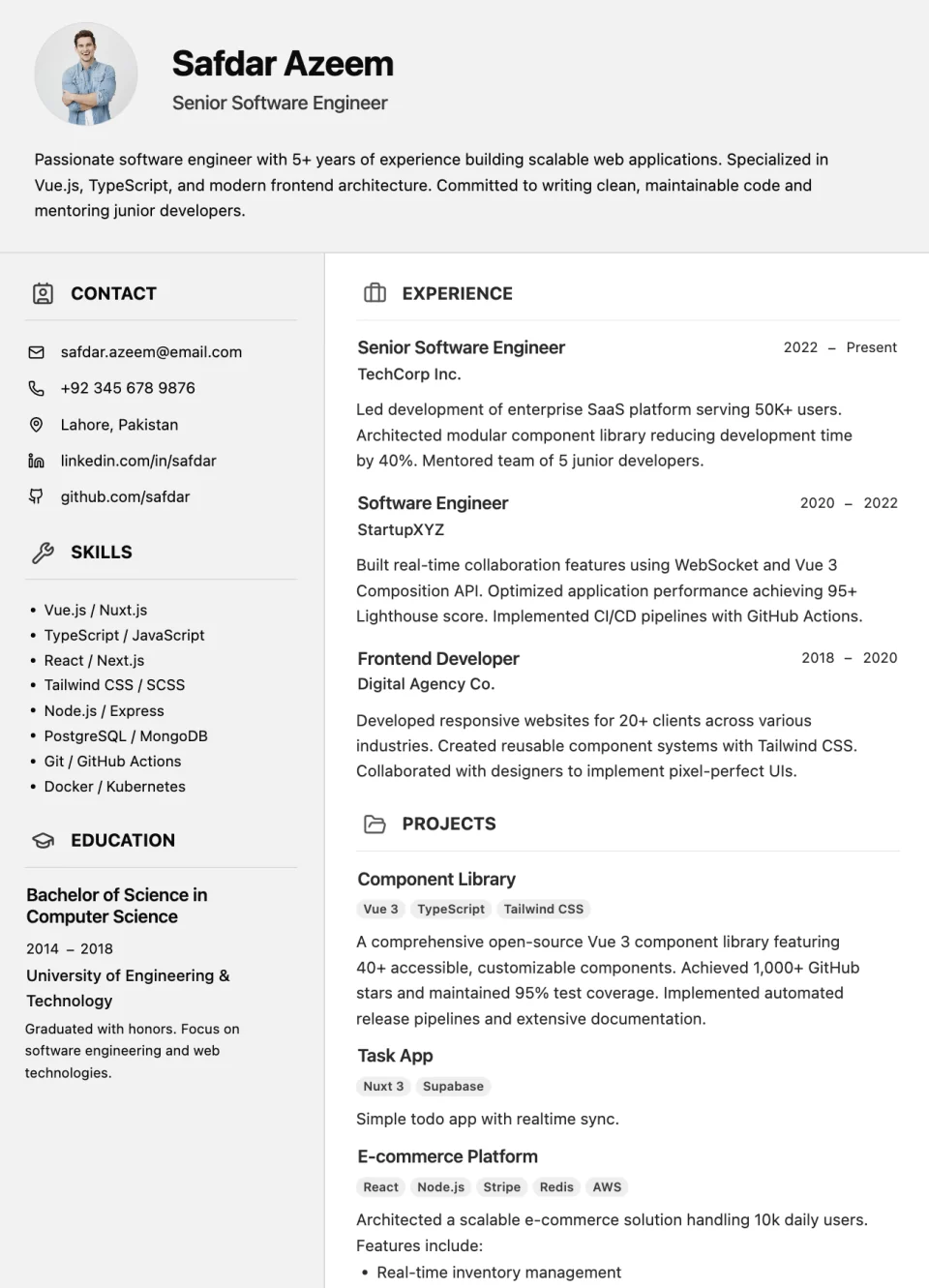
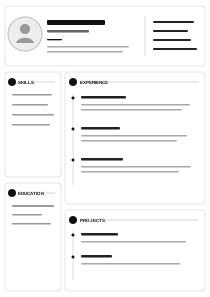
A two-column resume with a full-width profile header, contact and skills on the left, and experience and projects on the right.
Resume template
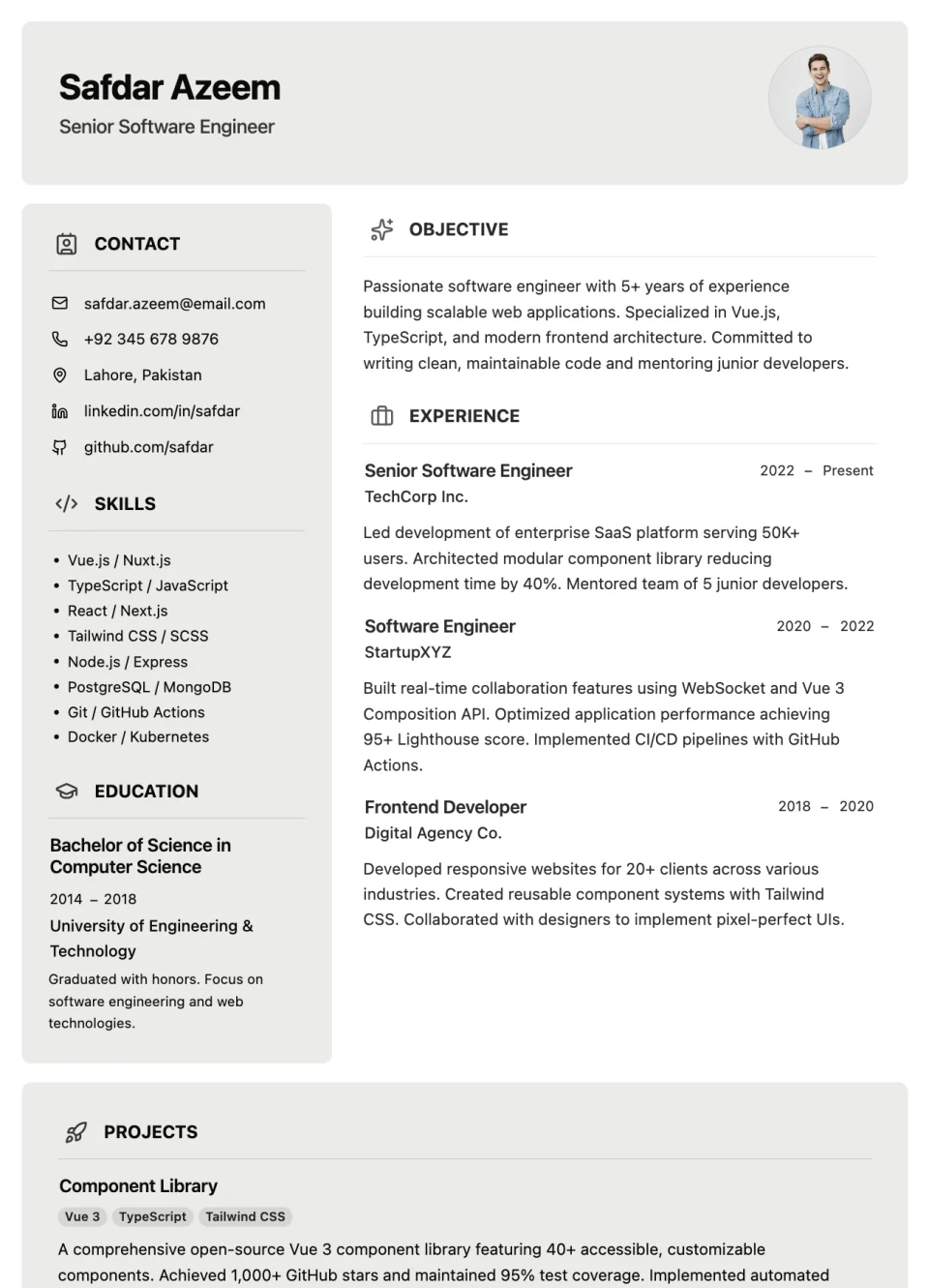
A two-column resume with a boxed name header, an objective above your experience, and a full-width projects section at the bottom.
Resume Builder opens its template step, where you select the template, set its starting style, and create your resume.
Overview
Zenith places your name, title, and photo in a boxed header. The page then splits into a side column for contact details, skills, and education, and a main column that opens with an objective before your work experience.
Projects run across the full width of the page in a footer section, giving them more space than a typical two-column layout. That makes Zenith a good fit when projects are as important as job history.
Use cases
An objective explains your direction, and full-width projects show practical work.
The objective sits right above your experience to frame transferable skills.
Projects get the full page width instead of sharing a column.
How to use it
Select the button on this page and sign in. Resume Builder opens its template step, where you select the template, set its starting style, and create your resume. Look for Zenith.
Click any text on the page to replace the sample content. Add, remove, or reorder entries and rename headings to fit your experience.
Review the layout and page breaks, then use Export as PDF. You can also print or share a public link.
See every editing, export, and sharing feature on the Resume Builder page.
Resume template
A two-column resume with a full-width profile header, contact and skills on the left, and experience and projects on the right.
Resume template
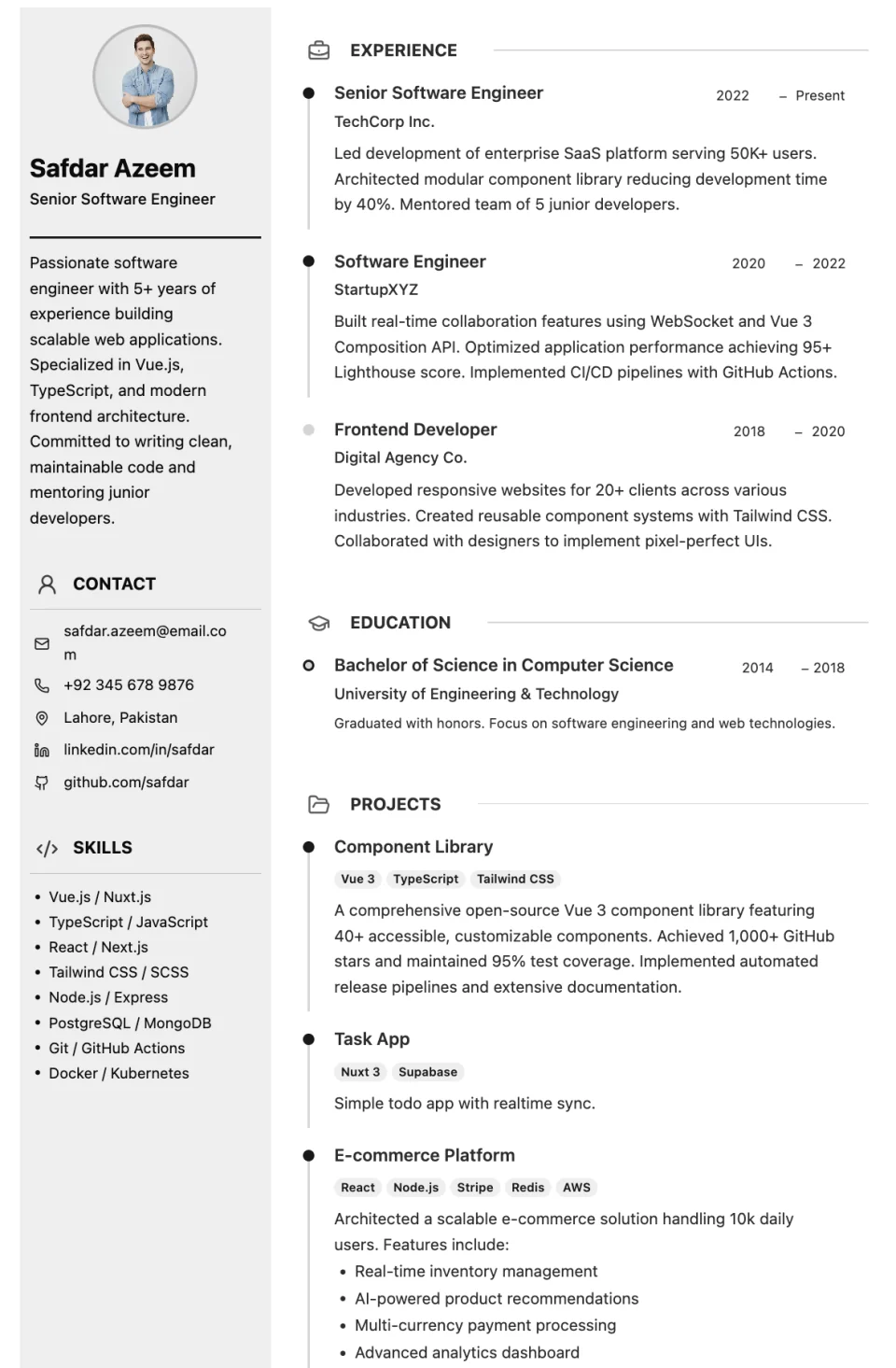
Minimal profile sidebar with refined timeline sections and blue accents.
Resume template
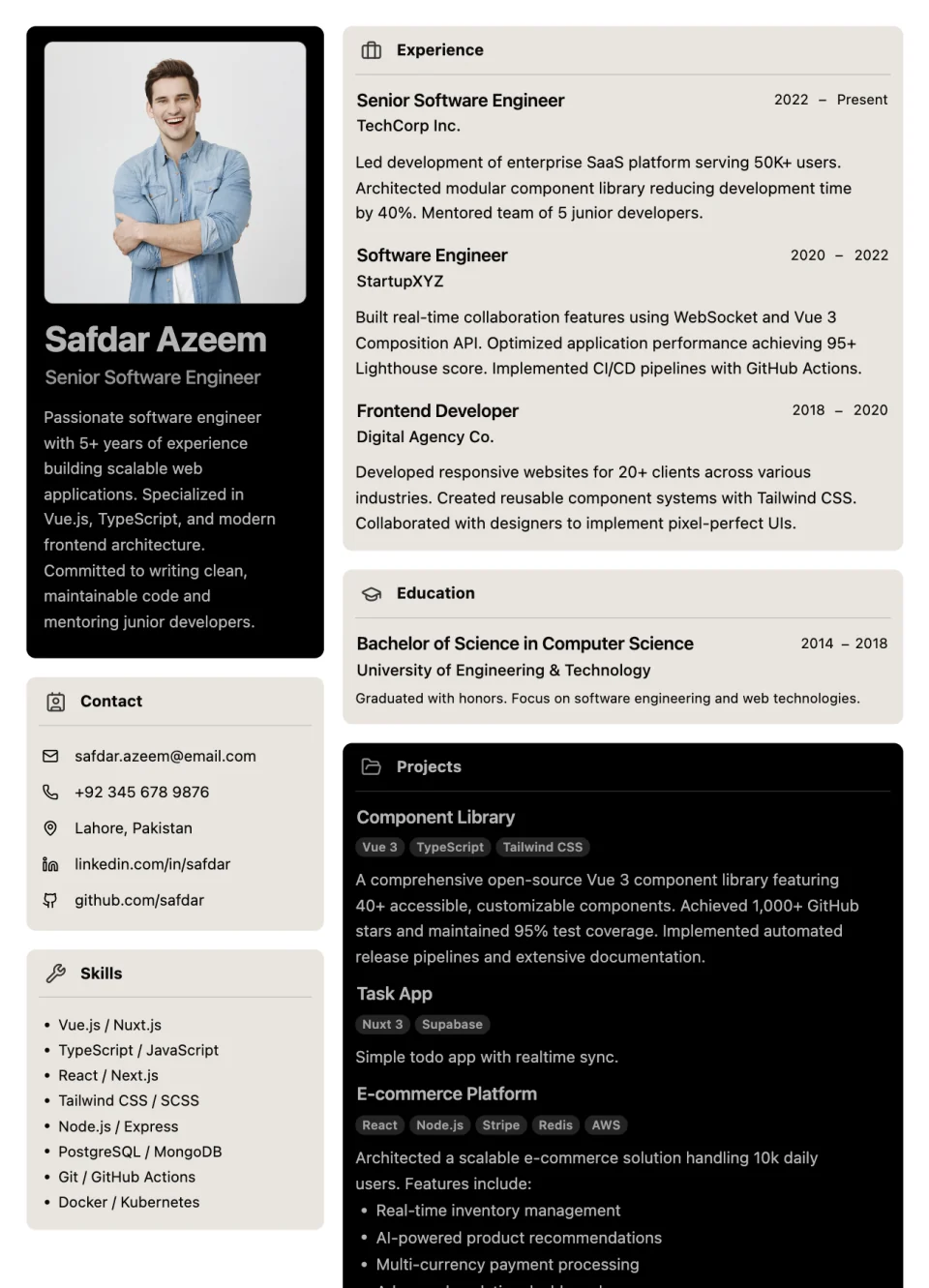
Polished profile header with structured career and qualification cards.
Also browse website templates and invoice templates.
Questions and answers
Builto Resume Builder
Resume Builder opens its template step, where you select the template, set its starting style, and create your resume.